Digital signage for restaurants and cafés.
Your menu, your specials and your Wi-Fi code on the screens above the counter — changed from a phone in seconds, nothing to reprint, and still playing when the internet drops.
The same counter, before and after
Three printed menus came down; three screens running the Menu board app went up in their place. Drag the line to see both.
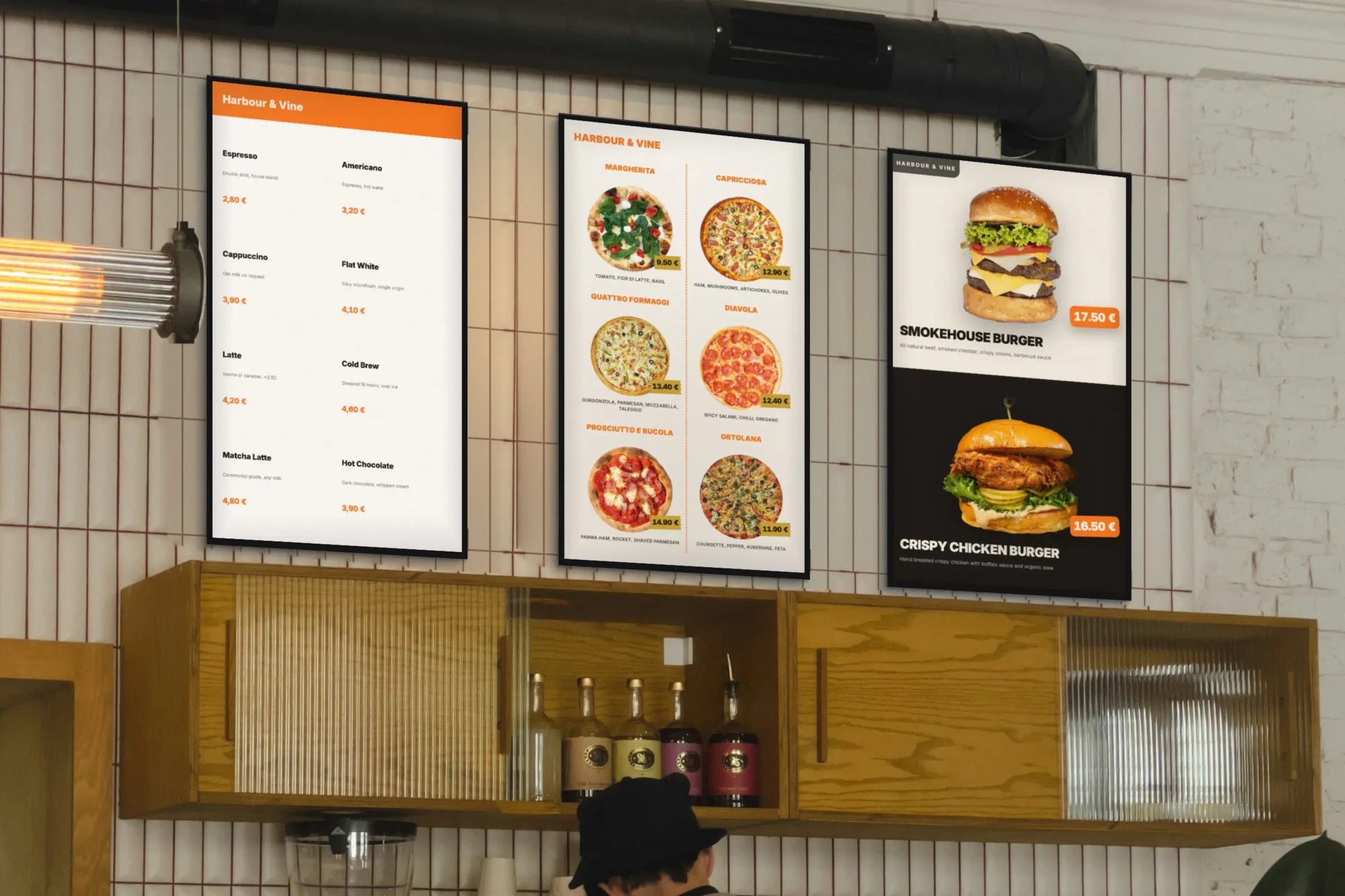
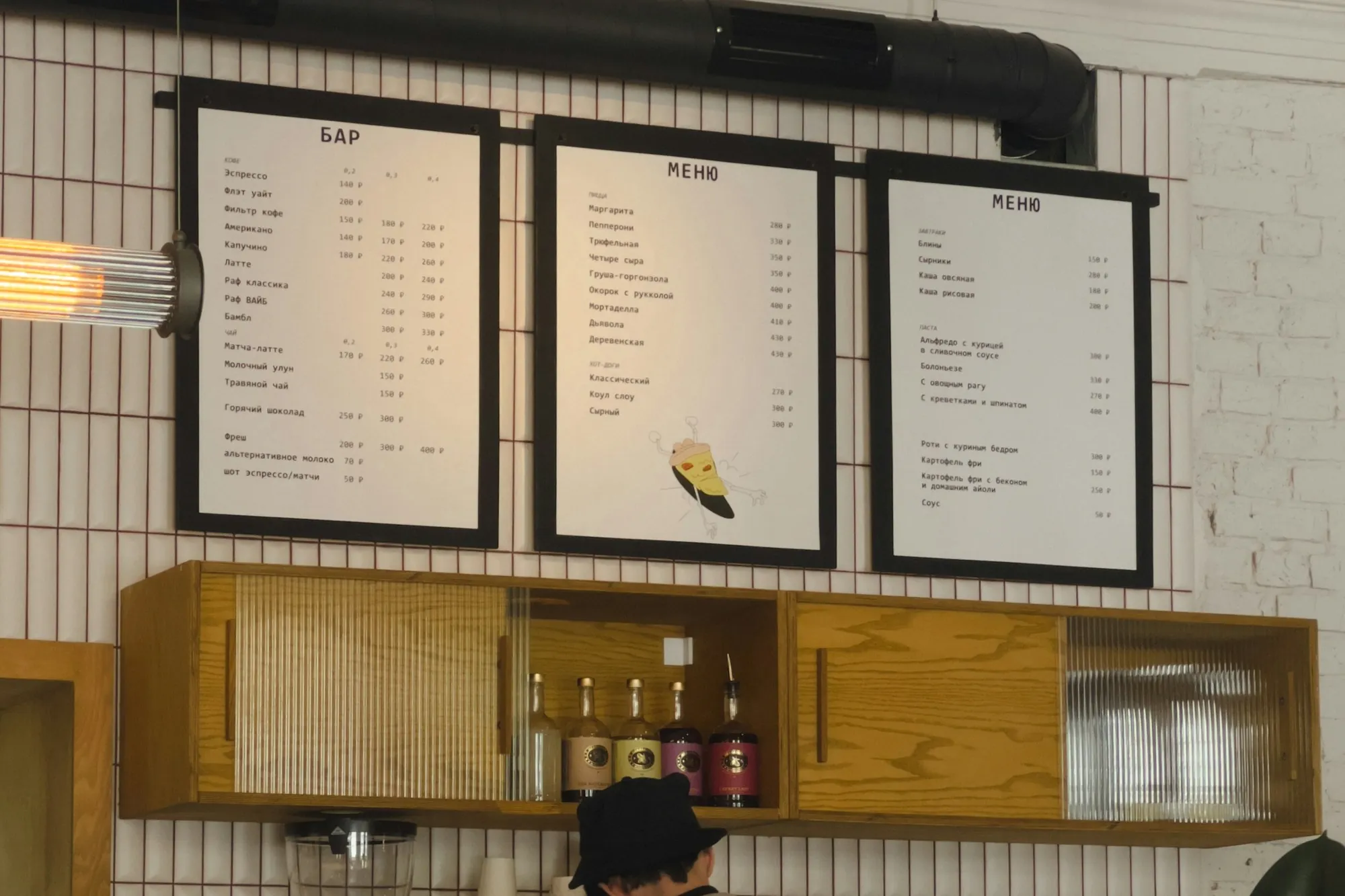 BeforeAfter
What the screens do in a restaurant
Most venues start with the menu and add the rest within a month. Each of these is an app in the dashboard, included in the plan.
The menu above the counter
The Menu board app draws your items, prices and dish photos in one of 11 designs, landscape or portrait. Categories become pages, so a longer menu gets more pages, never smaller type.
Specials and deals
A dish of the day, a lunch deal, a seasonal drink: an image, a short video or a Combo board in the playlist, switched off again the day it ends.
Wi-Fi and reviews by QR code
The QR code app makes a code that joins your Wi-Fi, opens your website or leaves a Google review — scanned from the table instead of asked at the till.
Several things on one screen
Zones splits a display into two, three or four panels — the menu beside a special, with a ticker of announcements running along the bottom.
The window and the queue
A portrait screen by the door shows passers-by what you serve and what it costs; the same board along the queue gives people time to decide before they reach the till.
Every location at once
One playlist can play on every screen in every location. Change a price once and every board that shows it updates.
What changes when the menu is on a screen
The difference shows up in the hours and the reprints you stop spending.
No more reprinting
A new price, a dish that ran out, a supplier who changed the cheese: edit the item and publish. Nothing to print, laminate or pin up.
A change in seconds, not by Friday
Players pick a published change up within seconds. The board on the wall is right before the next customer reaches it.
Photos where people decide
A dish with its photo and price is easier to choose than a line of text. The designs are built around photos when you have them, and fit more items when you do not.
One menu, every location
Locations stop drifting apart: the board in each one is the same playlist, edited in one place.
Proof a promotion ran
Every screen logs what it played and when. The playback report — a PDF you export or have emailed — shows when and where a promotion was on screen, which matters when a supplier pays for the space.
Still on when the internet is not
The menu is stored on the screen. If the connection drops in the middle of service the board stays up, and changes arrive when it is back.
What you need
None of this needs an installer or a server, and we sell none of it — use what you have, or what your electronics shop has in stock.
A screen
Any TV or commercial display with an HDMI input. A consumer TV is fine to start; for a board that runs from opening to close, a commercial display built for long hours earns its price.
Something to run the player
An Android TV box or stick behind the screen (Android 8 or newer), or a TV running Android TV or Google TV, which takes the app directly. A computer with a browser works too.
An internet connection
Cable or Wi-Fi, to pair the screen and to receive changes. Playback carries on without it.
A SignageStack account
Free for 21 days with every feature on one screen, no card. Then €11 per screen a month, or €100 a year.
Setting it up, from box to board
The first screen takes about as long as hanging it; the rest of the work is the menu itself.
Hang the screen, plug in the box
Mount the TV where the queue looks — above the counter, by the door — and plug the Android box into its HDMI input and the power. Landscape above the counter, portrait by the door: the orientation is a setting on the screen in the dashboard.
Install the player and pair it
Install the SignageStack player on the box. The screen shows a six-character code; in the dashboard choose Add screen, type it, and give the screen a name you will recognise, like “Counter — left”.
Type the menu or import it
Add the Menu board app, then type your items or import them from a CSV. Pick a design, add your logo, set your colour and currency. The preview beside the form is the finished screen.
Add the rest and publish
Put the board in a playlist with your specials and a QR code, add it to the screen, set the opening hours and publish. It is on the wall within seconds.
Changing the screens day to day
Whoever runs the shift does it, from a phone, with a login of their own.
- Change a price or take a dish off the board: edit the item and publish — every screen that shows it updates.
- Breakfast and lunch: keep a board for each, and switch one off and the other on when the menu changes. The screen does not swap menus by the clock on its own.
- A special that ends today: switch it off in the playlist tonight, and back on next week.
- Opening hours: each screen goes dark when you close and comes back when you open, on its own clock — even with the network down.
- A new location: pair its screens and give them the same playlists. Nothing to copy.
- Staff: invite them as Members to change content, or as Viewers to look without touching.
Apps restaurants run
All included in every plan. These are the ones a venue reaches for first.
Where the screens go
A restaurant has three places where a screen earns its keep, and each one wants something different.
Above the counter is where people decide. This is the menu: every item, every price, readable from the back of the queue. In a café with a short menu one landscape screen is enough. A longer one splits naturally across two or three portrait screens — drinks on one, food on the next, deals on the third — which is the layout in the picture above.
By the door or in the window is where people decide whether to come in at all. A portrait screen with the dish of the day, the lunch deal and its price does more here than the full menu would. Behind glass, brightness matters more than size: a bright commercial panel stays readable in daylight where a dim consumer TV turns into a mirror.
In the dining room, nobody needs the menu again. This is the place for the Wi-Fi QR code, the review QR code, tonight's event and the dessert they have not ordered yet.
How big, and which way up
Measure from where people actually stand, not from the middle of the room. For a menu read line by line, the furthest reader should be no more than about four screen heights away. At a counter two or three metres from the queue that means a 32" to 43" screen; across a café, 43" to 55". The hardware guide has the full table.
Decide portrait or landscape on the day you mount the screen, not later — the mount, the cable length and the layout all follow from it. In SignageStack the orientation is a setting on each screen in the dashboard, and every Menu board design draws itself either way.
Writing a menu for a screen
A printed menu is read sitting down, at the table. A screen is read standing up, in a queue, in a few seconds. That changes how it should be written.
- One category per page. The Menu board app already works this way: Coffee, Kitchen and Desserts each get their own page, and a long category gets more pages rather than smaller type.
- Short names, short descriptions. "Flat White — silky microfoam" reads at four metres. A sentence about the farm does not.
- A price on every item. A board without prices sends people to the till to ask.
- Photos for the dishes you want to sell. A photo beside a price is the strongest thing on the wall. If you do not have good photos, switch them off — the designs fit more items when they are not keeping space for pictures.
- Give each page time. Set the seconds per page so someone can read a whole page before it turns. If people read the board while they queue, err on the slow side.
What to put in the rotation
The menu does not have to be the only thing on the screen, but it should be the main one. A good playlist above a counter is short:
- The menu board, holding the screen longest.
- One special or deal — an image, a short clip, or a Combo board.
- A QR code that joins the Wi-Fi or opens your Google review page.
If you would rather show everything at once, the Zones app splits one screen into panels: the menu on the left, the special on the right, and the Ticker running announcements along the bottom.
Keeping it right
The point of a digital menu is that it is never out of date, so give one person the job of keeping it that way — and give everyone else a login of their own. A Member can change content; a Viewer can look without touching anything. When a price changes, it changes once, in the dashboard, and every screen showing that board follows within seconds.
Look at the screens list in the dashboard now and then. Every player reports when it was last seen and what it is playing, so a screen that went dark shows up there without anyone walking over to it.
Mistakes that are easy to avoid
- Type too small for the room. If you cannot read the price from the back of the queue, nobody can.
- Too much on one page. Ten items in a column is a list, not a menu board. Let categories become pages.
- A screen facing the window. Midday glare can wash a display out completely. Angle it, or use a brighter panel.
- A TV that does not come back after a power cut. Check for automatic power-on in the TV's settings before you buy, and prefer a box that starts as soon as it gets power.
- Prices on the screen older than the prices at the till. The fastest way to lose the trust a screen buys you.
Questions restaurants ask
No. Any TV with an HDMI input works with a small Android TV box behind it. A TV running Android TV or Google TV can take the player app directly, with no box.
Not on a timer. Make a board for each menu and switch one off and the other on when the menu changes — two taps on a phone. A screen’s working hours do switch it on and off by the clock, on their own.
Not live. A menu that is already in a spreadsheet comes into the Menu board once, as a CSV; after that, a change is a quick edit in the form.
The board stays up. The menu, the media and the working hours are stored on the screen; changes made in the meantime arrive when the connection is back.
No. Put the board in one playlist and add it to the screens in every location; an edit reaches all of them.
€11 per screen a month, so €33, or €100 per screen a year. Every app and every menu design is included, and the 21-day trial runs on one screen with no card.
Read next
- Digital Menu Board Software for RestaurantsPut your menu on a TV: 11 designs, prices you change in seconds, your logo and colours, and a board that keeps playing offline. For restaurants and cafés.
- Digital Signage Hardware — What to BuyWe do not sell hardware. What the player runs on, how big a screen needs to be, what to look for in a media player, and what is not worth paying for.
- Digital Signage Pricing — €11 per ScreenOne plan with every feature: €11 per screen a month or €100 a year. No setup fee, no per-user seats, no minimum. Free for 21 days, no card to start.
- Digital menu boards: a complete guide for restaurants and cafésWhat you need for a digital menu board, how to lay out the menu, switch from breakfast to lunch, and keep it playing when the internet drops.
- Digital menu board design: how to make a menu people can readDesign rules for a digital menu board: size for the queue, one category per page, photos and cut-outs, prices, light or dark, portrait or landscape.
Three steps between a blank TV and a live one.
No server to run, no licence per seat, nothing to install on your network. A display, a power socket and an internet connection.