Digital signage for gyms and fitness studios.
This week’s classes from your Google Calendar, today’s notices and the countdown to the next challenge on the screens by the front desk and the studio doors — changed from a phone, and still playing when the internet drops.
The same gym, before and after
The TV that was off now shows a quote for the day, a new screen beside the window carries the week’s classes from a Google Calendar, and a large portrait screen announces a challenge above tomorrow’s classes. Drag the line to see both.
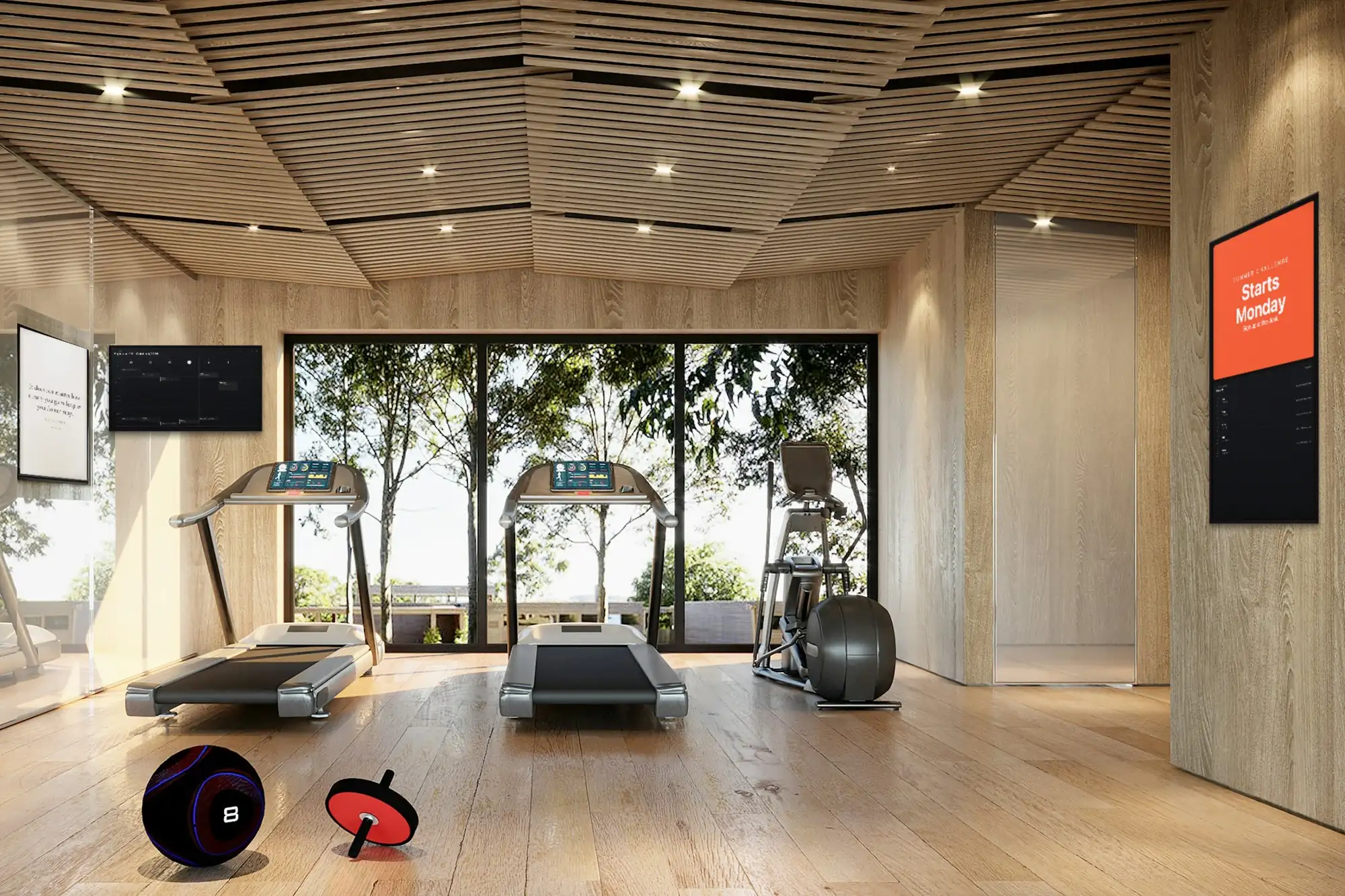
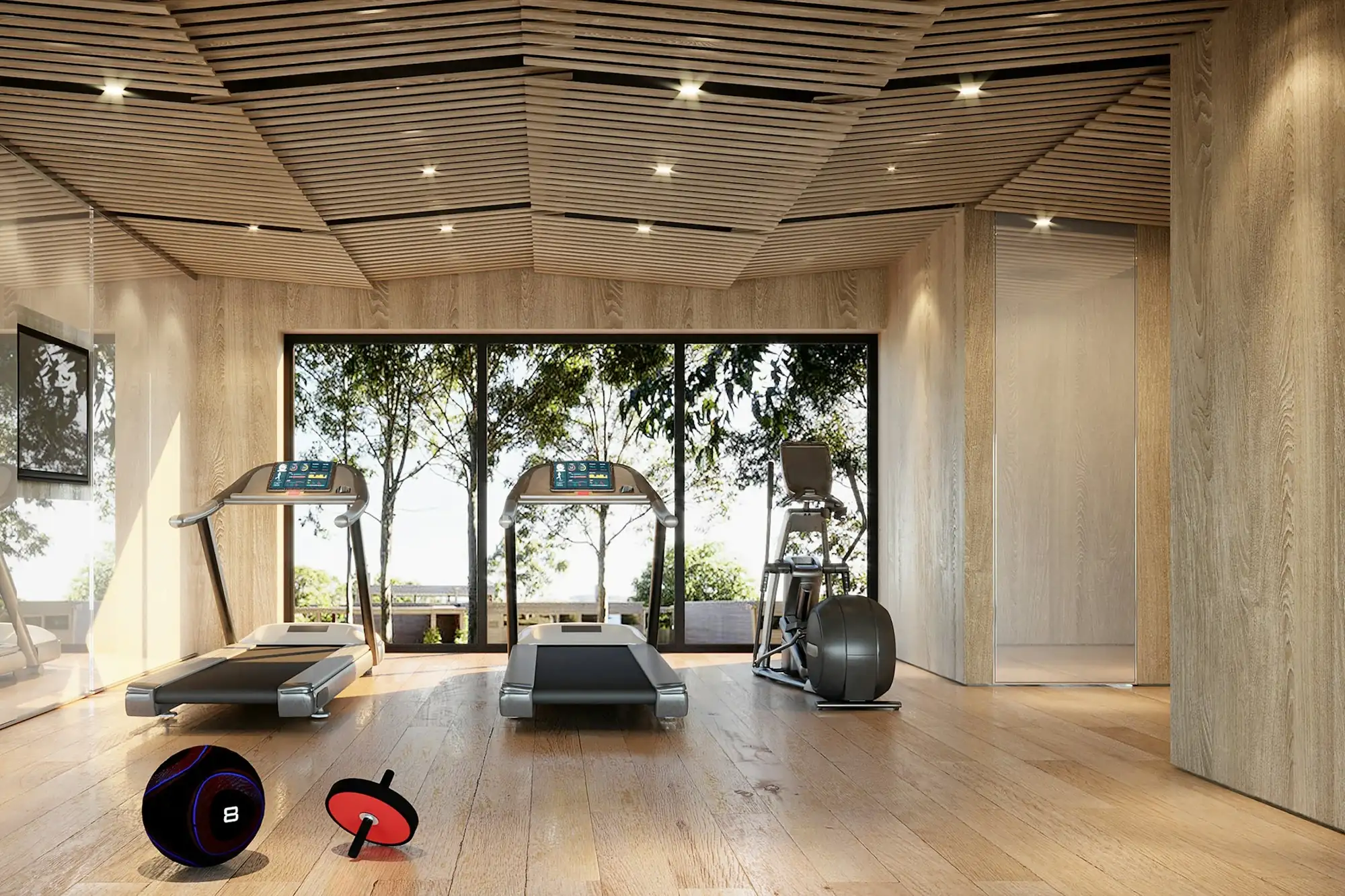 BeforeAfter
What the screens do in a gym
The timetable is usually the first screen to go up; the rest follows once people start looking at it. Each of these is an app in the dashboard, included in the plan.
The class timetable
The Google Calendar app shows the calendar your classes are already planned in — as a day, a week or a running schedule. Move a class in the calendar and the screen follows; classes that have finished can drop off on their own.
Notices for members
Text puts one message on the screen in large type: the sauna is closed until Thursday, the studio is booked for a competition on Saturday. Ticker runs short notices along the top or bottom, over whatever else is playing.
A date to train for
The Countdown app counts the days, hours and minutes to a moment you set — the start of the summer challenge, the club’s competition, the opening of the new studio — and shows your message when it reaches zero.
A quote for the day
Daily Wisdom shows a handful of quotes on the topics you pick — Motivation and Sports suit a training floor — and replaces them every day without anyone writing a word.
Offers and sign-ups
A membership deal or a pack of personal-training sessions, designed in Canva, plays straight from your Canva account, and the screen keeps up with the latest version of the design. A QR code beside it opens the sign-up page, asks for a Google review or joins the Wi-Fi.
Timetable and offer on one screen
Zones splits a display into two, three or four panels: today’s classes on one side, the offer of the month on the other, a Ticker of notices along the bottom.
What changes when the timetable is on a screen
The difference shows up at the front desk and on the noticeboard by the door.
One timetable, not two
The calendar your team plans classes in is the one on the wall. No printout to redo when a class moves, and no old sheet still showing last month’s spin class.
Fewer questions at the desk
What is on tonight, whether the sauna works, what the Wi-Fi is called: the screen answers before anyone has to ask, and the desk can look after the people coming in.
Notices that come down on time
A paper notice stays up until someone remembers it. On a screen, a notice is an item in the playlist: switched off the day it stops being true, and back on when it applies again.
Every club in step
Offers and notices that apply everywhere go in one playlist on every screen; each club keeps its own calendar. With Zones, one screen shows both — the local timetable beside the shared offers.
Proof a partner’s slot ran
Every screen logs what it played and when. If a supplement brand or a local physio pays for a place on your screens, the playback report — a PDF you export or have emailed — shows when and where it ran.
Still up when the Wi-Fi is not
The playlist is stored on the screen. If the connection drops, the screens keep playing and the timetable shows what it last loaded; changes arrive when the connection is back.
What you need
No installer, no server, and nothing we sell you — the screens and boxes come from any electronics shop.
A screen
Any TV or commercial display with an HDMI input. A screen that is on from the first class of the morning to the last one at night has long days; a commercial display is built for those hours.
Something to run the player
An Android TV box or stick behind each screen (Android 8 or newer), or a TV with Android TV or Google TV, which takes the app directly. Any computer with a browser can run the web player too.
A connection that reaches the wall
Basements and concrete walls are hard on Wi-Fi, and many gyms have both. Run a cable to the screen where you can. Playback carries on without a connection; only changes wait for it.
A SignageStack account
Free for 21 days with every feature on one screen, no card. Then €11 per screen a month, or €100 a year.
Setting it up, from wall to timetable
Mounting the screen is most of the work. The timetable already exists — it is in your calendar.
Mount the screen, plug in the box
Put it where people stop and wait: behind the front desk, beside a studio door, at the end of the cardio row — above head height and out of reach of the weights. Plug the Android box into its HDMI input and the power; portrait or landscape is a setting on the screen in the dashboard.
Install the player and pair it
Install the SignageStack player on the box. The screen shows a six-character code; in the dashboard choose Add screen, type it, and give the screen a name you will recognise, like “Studio 2 — door”.
Connect the calendar
Add the Google Calendar app, sign in with the Google account that holds your classes, and pick the calendar and the view — the week at the front desk, the day by a studio door. The app only reads the calendar.
Add the rest and publish
Put the timetable in a playlist with this week’s notice, a quote and the countdown, add it to the screen, set the opening hours and publish. It is on the wall within seconds.
Changing the screens day to day
The front desk or the studio manager does it from a phone, each with their own login.
- A class moves or a trainer is off sick: change it in Google Calendar, as you would anyway. The timetable on the screen follows on its own.
- The sauna is out of order: a Text notice in the playlist, switched off again when it is fixed.
- A challenge starts on the first of the month: set the Countdown to that date and write the message for zero. When it is over, point it at the next one.
- A new offer: edit the design in Canva and the screen shows the new version. Nothing to export or upload.
- Opening hours: each screen comes on before the first class and goes dark after the last, with its own times for each weekday — on its own clock, even with the network down.
- Trainers: invite them as Members so they can put up notices for their own classes, or as Viewers to look without changing anything.
Apps gyms run
All included in every plan. These are the ones a gym sets up first.
- Google CalendarShow upcoming events from a Google Calendar
- CountdownCount down to a moment — or up since one
- Daily WisdomA new quote on the wall every day
- TextShow a message or announcement
- TickerScroll announcements across the screen
- QR codeShow a scannable QR code
- CanvaShow a Canva design on your screens
- ZonesSplit one screen into several panels
Where the screens go
A gym has more walls than it needs screens. Three places do most of the work, and each one is read differently.
At the front desk everyone passes twice: on the way in and on the way out. This is the screen for the week — the full class timetable, this week's notices, the offer of the month. Mount it behind or beside the desk, where people stand while they check in, not above the door they leave by.
At the studio doors people want one thing: what is on in this room, and when. A portrait screen beside each door, showing that studio's classes for the day, answers it before anyone opens the door on a class in progress.
On the training floor nobody reads a timetable between sets. This is the place for things that work in a glance: a quote for the day, the countdown to the next challenge, a video with the sound off. Mount these above head height and well away from the racks — a screen within reach of a loaded barbell is a screen you will replace.
Leave the changing rooms out. Damp air is hard on any display that was not built for it, and it is the one room where nobody wants a screen.
How big, and which way up
Measure from where people actually stand. A timetable is read line by line, so the furthest reader should be no more than about four screen heights away; a quote or a countdown in large type can be read from about six. At a front desk read from three or four metres that means a 43" to 55" screen; on a training floor read from across the room, 55" to 65", or larger. The hardware guide has the full table.
The view decides the orientation. A week of classes needs width, so the screen at the front desk goes landscape. A list of today's classes reads well on a portrait screen beside a door. Choose on the day you mount the screen: the bracket, the cable and the layout all follow from it. In SignageStack the orientation is a setting on each screen in the dashboard.
A timetable that keeps itself current
The calendar is the timetable. Whoever plans classes in Google Calendar is already keeping the screen up to date.
- One calendar per studio, or one for the whole gym. The app shows one calendar at a time. A calendar per studio lets each door show only its own room; one calendar for everything suits a single-room studio or the front desk.
- Name classes the way members say them. “Spin — Ana” reads from the doorway. “Indoor Cycling Intermediate Level 2 (bring water)” does not. If people choose classes by trainer, put the trainer's name in the title.
- Let finished classes go. Turn on “Only show upcoming events” so a class drops off once it ends, and “Auto scroll” for the days when more classes are on than fit.
- Cancel in the calendar, not on paper. A class cancelled at short notice is removed or renamed in the calendar, and the screen follows. A sticky note on the frame brings back the problem the screen was there to solve.
The screen shows classes; it does not take bookings. If members book online, put a QR code beside the timetable that opens the booking page.
What else goes in the rotation
A screen at the front desk can carry more than the timetable, but someone walking past sees one or two slides, not ten. Keep the playlist short:
- The timetable, holding the screen longest.
- One notice in Text — the one thing members need to know this week.
- The offer of the month, designed in Canva, with a QR code that opens the sign-up page.
- A quote from Daily Wisdom, or the Countdown to the next event.
If you would rather show everything at once, Zones splits one screen into panels: today's classes on the left, the offer on the right, and a Ticker running notices along the bottom.
On the training floor, video is the usual request. The YouTube app plays a video, and the Live stream app plays a channel with its sound on or off — off, where the gym's own music is already playing. The licences for any music or video you show are the gym's to hold, just as they are for the music.
Keeping it right
Give each kind of content an owner. Whoever plans classes owns the calendar; the front desk owns the notices; the manager owns the offers. Everyone gets a login of their own: trainers can be Members, who change content, and anyone who only needs to see what is on the screens can be a Viewer, who changes nothing.
Set each screen's working hours to the gym's: on before the first class, dark after the last, with different times for each weekday. The screens keep to them on their own clock, even when the internet is down. Look at the screens list in the dashboard now and then, too — every player reports when it was last seen, so a screen that went dark shows up there before a member mentions it.
With more than one club, put what applies everywhere — the offers, the notices from head office — in one playlist, and give each club's screens their own calendar beside it. An offer changed once changes in every club.
Mistakes that are easy to avoid
- A week view on a small screen across the room. If the class names cannot be read from where people stand, show the day instead, or hang a bigger screen.
- Notices that outlive the problem. “Sauna closed” two weeks after the sauna was fixed teaches members that the screen is not worth reading. Switch a notice off the day it stops being true.
- A countdown that reached zero last month. The message at zero stays on the screen until you change it. Point the Countdown at the next date, or take it out of the playlist.
- Screens within reach of the weights. Mount above head height, away from the racks and the lifting platform.
- Sound fighting the music. A video with its sound on next to the gym's speakers makes both worse. On the floor, keep video silent.
Questions gyms ask
No. The Countdown counts down to a date and time, or up since one — the start of a challenge, the day a studio opens. It does not run rounds or work-and-rest intervals, so keep the timer you use in class today.
No. The Google Calendar app only reads your calendar: it shows classes and never books, changes or deletes anything. Put a QR code beside the timetable that opens your booking page, and members book on their own phone.
No. There is no connection to gym-management or booking software, to wearables or to heart-rate systems. If your timetable lives in booking software, keep a Google Calendar of the classes for the screens, or show the software’s public timetable page with the Web page app — if that page allows being shown inside another site.
Yes. The YouTube app plays a YouTube video, and the Live stream app plays a stream or a channel on YouTube, Twitch, Vimeo and other platforms, with its sound on or off. The licences for any music or video you play are the gym’s responsibility, as they are for the music you play today.
The screens keep playing. Playlists, media and working hours are stored on each screen, the timetable shows what it last loaded, and changes arrive when the connection is back. Canva designs, YouTube videos and live streams need the connection, and are left out until it returns.
€11 per screen a month, so €44, or €100 per screen a year. Every app is included, and the 21-day trial runs on one screen with no card.
Read next
- 32 Digital Signage Apps, All IncludedMenu boards, clocks, weather, news, exchange rates, YouTube, Google Slides and Canva. Every app is included in the plan — nothing is an upsell.
- Digital Signage Hardware — What to BuyWe do not sell hardware. What the player runs on, how big a screen needs to be, what to look for in a media player, and what is not worth paying for.
- Digital Signage Pricing — €11 per ScreenOne plan with every feature: €11 per screen a month or €100 a year. No setup fee, no per-user seats, no minimum. Free for 21 days, no card to start.
- Digital Signage Content Ideas: 60 Things to Show, and How to Make Them60 digital signage content ideas grouped by goal, from opening hours to QR codes, each with how to make it: an app, an image or a short video.
Three steps between a blank TV and a live one.
No server to run, no licence per seat, nothing to install on your network. A display, a power socket and an internet connection.