Digital signage for hotels.
A welcome in the lobby, today’s events outside the conference rooms, the weather and the Wi-Fi code by the lifts — changed from the front desk in seconds, and still playing when the network drops.
The same lobby, before and after
A large screen above reception carries tonight’s music beside tomorrow’s events from a Google Calendar, and the stone panels on the pillars became tall screens with a welcome and the weather. Drag the line to see both.
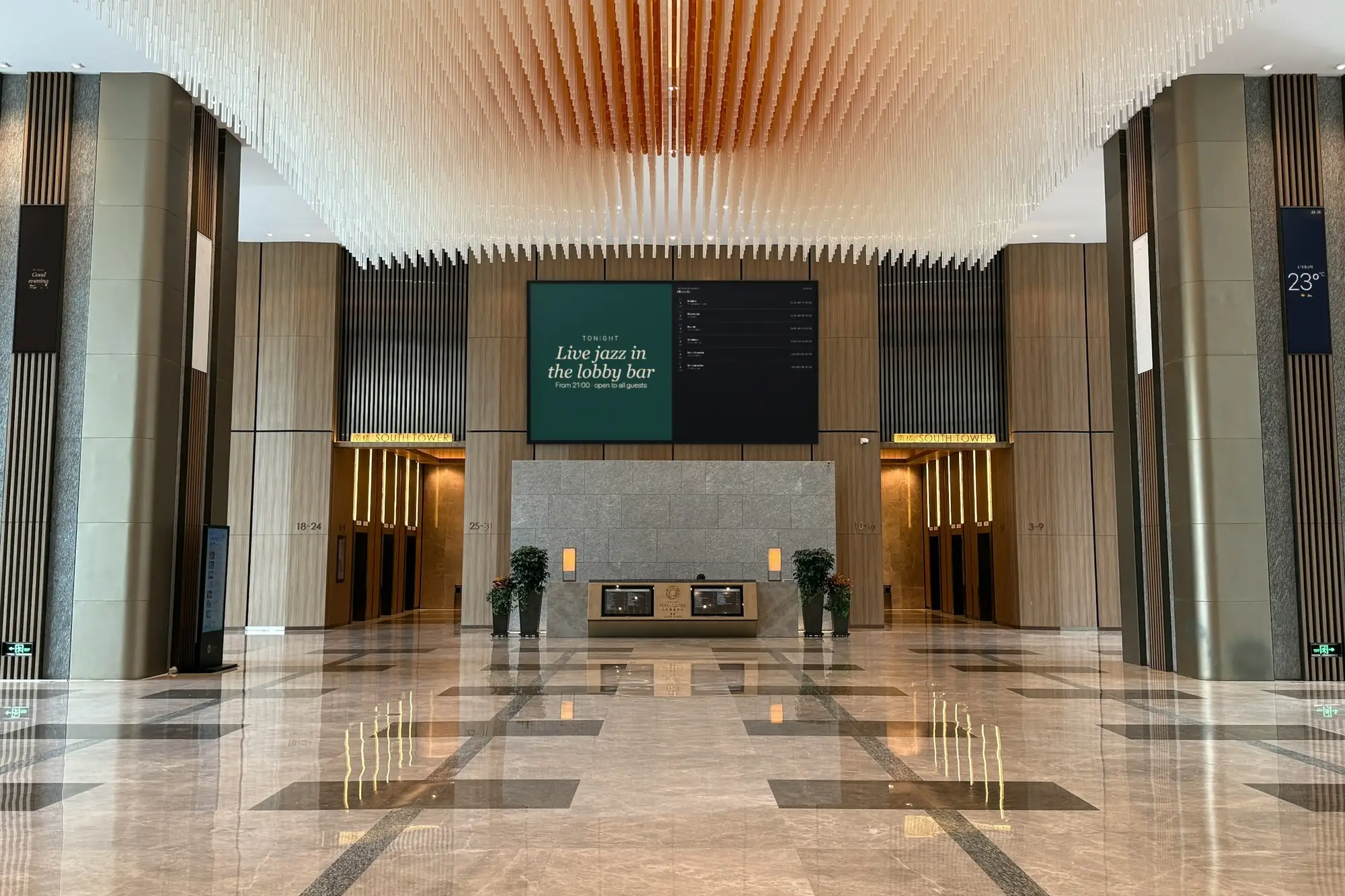
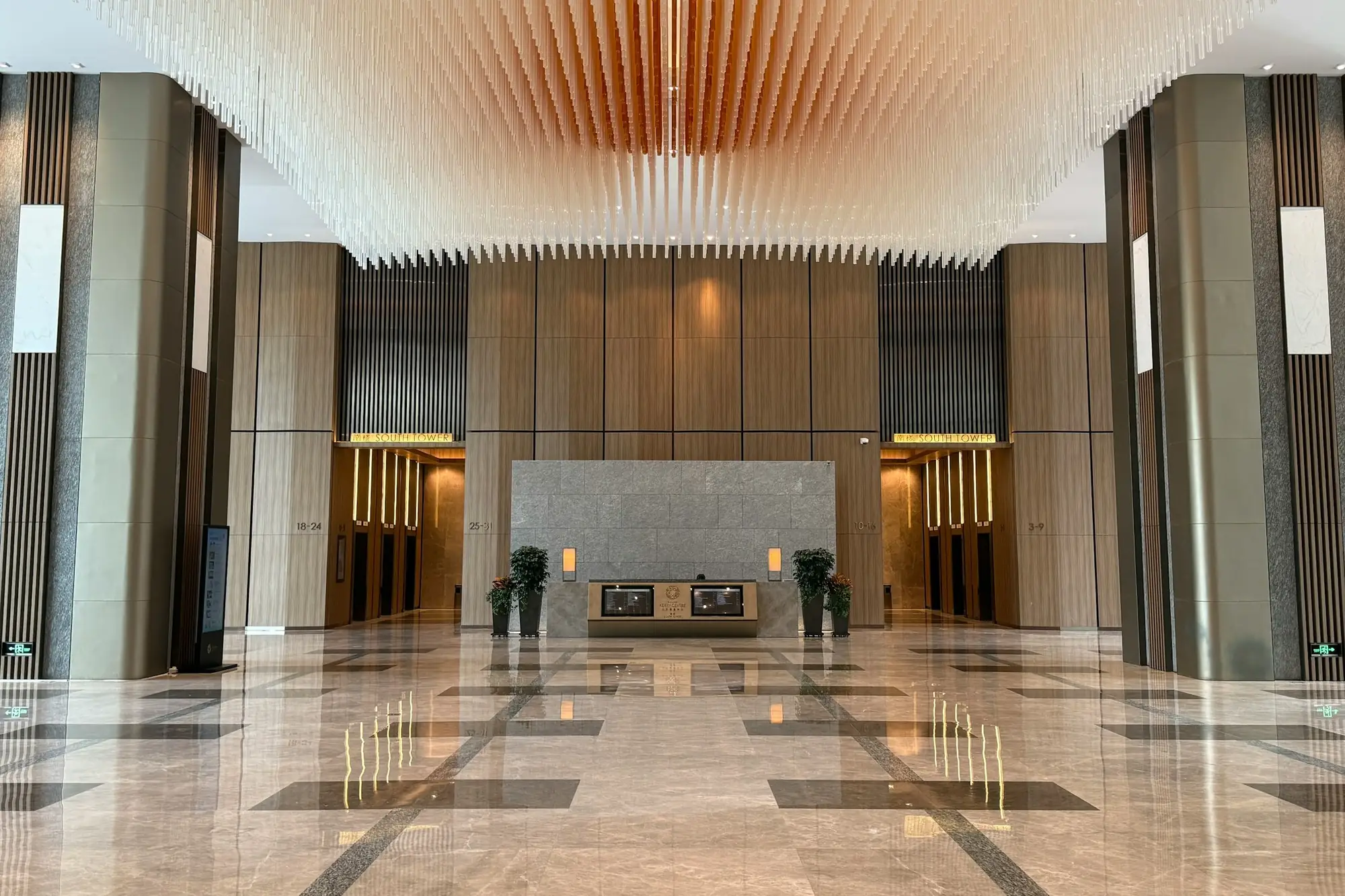 BeforeAfter
What the screens do in a hotel
A hotel has more places for a screen than most businesses, and each one answers a different question. Every one of these is an app in the dashboard, included in the plan.
A welcome in the lobby
The Text app puts a short welcome on screen in your own colours, or the Canva app shows a design from your Canva account and re-exports it when you edit it there. A conference or a wedding party gets its own line for the days it is in the house.
Today’s events, by the rooms
The Google Calendar app shows the events calendar as a day or schedule view: which session, which room, what time. In the schedule view finished sessions drop off, and a long day can scroll slowly on its own.
The weather for the day out
The Weather app shows the forecast for your town, hour by hour or for the week, in °C or °F, in English, German, Spanish, Italian or Serbian. Air quality can sit beside it, on the European or the US scale.
Exchange rates at reception
The Exchange rates app lists the day’s market rates from your currency into the ones your guests carry, and updates itself every day. Useful when a guest is working out a price in their own money.
QR codes where guests wait
A code that joins the guest Wi-Fi, opens the restaurant’s menu page or leaves a Google review — on the screen by the lifts, scanned while the lift comes instead of asked at the desk.
The restaurant and the bar
The Menu board shows the bar list or the lunch menu with prices, in one of 11 designs. Breakfast times get a slide of their own in the lobby and the lifts, where guests see them the night before.
What changes when the answers are on the wall
Most of it shows up at the front desk.
Fewer of the same questions at the desk
What is the Wi-Fi? Where is the seminar? Until when is breakfast? When the wall answers them, the desk has more time for the guest standing in front of it.
Event signs that follow the calendar
The events team keeps the calendar it already keeps. When a session moves room, the screen outside picks the change up within minutes — no printed sign to redo before the coffee break.
One alert, every screen
Emergency Alert puts a full-screen warning on the screens you choose within a second — the lobby, the lifts, the conference floor — including screens that are off for the night. Once it is up, it stays up if the network drops.
Proof a sponsor’s slide ran
When a conference sponsor pays for a slide on your screens, the playback report shows where and when it played — a PDF for one screen or the whole hotel, exported when you need it or emailed on a schedule.
Every property, one dashboard
Several hotels in one account. Each screen keeps its own name and hours, each property its own town’s weather; the brand slides are one playlist on all of them, edited once.
Still on when the network is not
Playlists and media are stored on the player. If the network drops, the screens keep playing; the calendar and the weather hold their last value until it is back.
What you need
No server, nothing installed on the hotel network, and no hardware from us — buy locally, or use the screens you already have.
Screens built for the hours
Any TV or commercial display with an HDMI input. The lobby screen is often on day and night, so that is where a commercial display, built for long hours, earns its price. By the lifts and the conference rooms, smaller screens in portrait do the job.
Something to run the player
An Android TV box or stick behind each screen (Android 8 or newer), or a TV with Android TV or Google TV. An Android display takes the app directly, with no box behind it — useful where the wall leaves no room. A computer with a browser works too.
A network the players can stay on
Cable where you can run it, Wi-Fi with a good signal where you cannot. Put the players on the staff network or one of their own: a guest network with a login page can log a player out. Playback carries on without a connection.
A SignageStack account
Free for 21 days with every feature on one screen, no card. Then €11 per screen a month, or €100 a year. A hotel group can ask about Enterprise: volume pricing, a signed DPA and an uptime SLA.
Setting it up, floor by floor
The first screen takes about as long as hanging it. The rest is deciding what each place should say.
Hang the screens, plug in the boxes
The lobby wall where guests wait to check in, beside the lifts, outside the conference rooms. Plug an Android box into each screen’s HDMI input and the power. Landscape in the lobby, portrait by the lifts and doors: the orientation is a setting on each screen in the dashboard.
Install the player and pair each screen
Install the SignageStack player on the box. The screen shows a six-character code; in the dashboard choose Add screen, type it, and give the screen a name anyone can find — “Lifts — 3rd floor”, “Ballroom — door”.
Connect the calendar, write the welcome
Add the Google Calendar app and sign in with the account that holds the events calendar; the app only reads it. Set the Weather app to your town. Write the welcome in the Text app, or pick a design from Canva.
A playlist per place, hours, publish
Make a playlist for the lobby, one for the lifts and one for the conference floor, and add each to its screens. Set working hours — always on for the lobby, the event days for the conference floor — and publish. It is on the wall within seconds.
Through the week
The front desk, the events team and the concierge each change their own part, from a phone or the desk computer, with a login of their own.
- A group arrives this afternoon: type its welcome into the lobby’s Text slide and publish. Every lobby screen shows it within seconds; switch it off when the group leaves.
- A session moves to another room: change it in Google Calendar as usual. The screen outside the room follows on its own.
- Breakfast runs later at the weekend: edit the breakfast slide and publish, and every screen showing that playlist updates.
- Local tips: the concierge keeps a Google Slides deck — the Saturday market, the museum that closes on Mondays, the bus to the old town — and the screen picks up each change to the deck.
- At night the conference floor goes dark at the hour you set, on the player’s own clock, and comes back in the morning. An Emergency Alert still reaches it while it is dark.
- Front desk staff are Members and can change content; a manager who only checks is a Viewer. Each person works in the dashboard in their own language — English, Serbian, German, Spanish or Italian.
Apps hotels run
Every app is in every plan. These are the ones a hotel’s screens run most.
- TextShow a message or announcement
- WeatherLive local weather on your screens
- Google CalendarShow upcoming events from a Google Calendar
- Exchange ratesDaily currency exchange rates
- QR codeShow a scannable QR code
- Google SlidesLoop a private Google Slides deck from your account
- Menu boardShow a menu or price list
- Emergency AlertFull-screen urgent message
Where the screens go in a hotel
A hotel has more places for a screen than most businesses, and a guest stands in front of each one for a different reason.
The lobby is where guests wait: to check in, to check out, for a taxi, for the rest of their group. This is the screen for the welcome, the weather, today's events and the Wi-Fi code — the wall in the picture above. It is read from across the room, so it wants large type and a large screen.
Beside the lifts guests stand for a few seconds on every floor, several times a day. A portrait screen there carries one thing at a time: breakfast times, what is on in the bar tonight, a QR code for the Wi-Fi or the restaurant's menu.
On the conference floor people are looking for a room. A screen beside each door shows that room's day; a larger one where the floor begins shows the whole programme.
In the restaurant and the bar the screen is a menu: the bar list or the lunch menu with prices, and in the morning the breakfast hours and where the buffet is.
How big, and which way up
Measure from where guests actually stand, not from the middle of the lobby. For large text — a welcome, a temperature, a time — the furthest reader can be up to about six screen heights away. For anything read line by line, like a programme or a bar list, keep it to four. Across a lobby, four or five metres away, that means 55" to 65"; at a reception desk three or four metres away, 43" to 55". The hardware guide has the full table.
Landscape suits the lobby, where one screen often carries several things side by side. Portrait suits the lifts and the conference-room doors, where the wall is narrow and the content is a list. Settle it on the day you mount the screen, because the bracket and the cable follow from it; in SignageStack it is then a setting on each screen in the dashboard.
What goes on each screen
Give each place its own playlist, so a guest waiting for the lift is not sitting through the conference programme. A good first version:
- Lobby: the welcome, the weather, today's events, the exchange rates, a Wi-Fi QR code. To show several at once, the Zones app splits the screen into two, three or four panels — the welcome, the weather and the day's events side by side.
- Lifts: breakfast times, the bar's hours, a QR code for a Google review, and the concierge's local tips from a Google Slides deck.
- Conference floor: the events calendar in the schedule view with “only upcoming events” on, so finished sessions drop off. Sponsor slides can take turns with it in the playlist.
- Restaurant and bar: the Menu board, and tonight's event if there is one.
One thing to settle before the conference floor goes live: the Google Calendar app shows the events in the calendar you give it. Make a calendar for the screens that holds only what guests should see, rather than connecting a working calendar full of internal entries.
Writing for guests from everywhere
Hotel guests do not share a language, and they read a screen on the way past, often with a suitcase in hand.
- Few words, large type. “Breakfast 7:00–10:30 · Restaurant, ground floor” works for almost anyone. A paragraph about the chef does not.
- Times and places first. Guests look at a screen to find out when and where; put that in the largest type.
- Set the apps' own language. The Weather and Google Calendar apps each have an on-screen language — English, German, Spanish, Italian or Serbian — and the Weather app shows °C or °F. Choose what most of your guests read.
- Two languages, two slides. If your guests split between two languages, make the welcome twice and let the playlist alternate, rather than squeezing both onto one slide.
- Give each slide time. Set each item's duration so a slide can be read before it changes. By the lifts, where the wait is short, shorten the text rather than the duration.
Keeping it right
A screen that still welcomes yesterday's conference is worse than a bare wall. Give each part an owner: the front desk owns the welcome, the events team owns the calendar, the restaurant owns the Menu board, the concierge owns the tips. Invite each of them with a login of their own — a Member can change content, a Viewer can look without touching. The dashboard works in English, Serbian, German, Spanish and Italian, so each person can work in their own language.
Set working hours on each screen. The lobby can stay on around the clock; the conference floor can switch off at night and on days with no events; the breakfast-room screen can keep the restaurant's hours. Each player follows its own clock, so this keeps working with the network down.
Check the screens list in the dashboard now and then. Every player reports when it was last seen and what it is playing, so a dark screen on the fourth floor shows up there before a guest mentions it.
And know where the Emergency Alert is before you need it. Switched on from the dashboard, it covers the screens you choose within a second, including the ones that are off for the night.
Mistakes that are easy to avoid
- A welcome for a group that left yesterday. Switch it off in the playlist on the day the group checks out.
- The working calendar on the wall. Connect a calendar made for the screens.
- Players on the guest Wi-Fi. A login page that expires can cut a player off. Use cable or the staff network.
- A lobby screen facing the entrance. Daylight through glass doors can wash a display out. Angle it, or choose a brighter panel.
- A screen that stays dark after a power cut. Check for automatic power-on before you buy, and choose a box that starts as soon as it gets power.
- Expecting the screen to know the guests. It is not connected to the booking system. Plan the content around what someone at the desk can type in a minute.
Questions hotels ask
No. SignageStack has no connection to a property-management or booking system, so guest names, room numbers and arrivals never come in on their own. A welcome for a group or a wedding is typed into the Text app, or designed in Canva, by whoever runs the desk.
No. SignageStack runs the screens in the public areas — the lobby, the lifts, the conference floor, the restaurant. It is not an in-room TV or guest entertainment system: no channel list, no greeting by name on the room TV, no bill on screen.
No. The Google Calendar app only reads the calendar: it shows the bookings that are in it and never adds, changes or deletes one. Rooms are booked in Google Calendar as before, and the screen outside the room follows.
No. The Clock app shows one time, the local time of the screen, in five styles from analogue to split-flap. It has no time-zone setting, so a row of world clocks is not possible.
No. The Exchange rates app shows daily market reference rates, not a bank’s or an exchange office’s buy and sell rates. If your desk changes money, put your own rates in a Google Sheet and show it with the Google Sheets app — the screen follows the sheet — or list them in the Menu board.
€11 per screen a month, so €154, or €100 per screen a year, so €1,400 — every app included, VAT excluded. A larger group can ask about Enterprise: volume pricing, a signed DPA and an uptime SLA. The 21-day trial runs on one screen, no card.
Read next
- 32 Digital Signage Apps, All IncludedMenu boards, clocks, weather, news, exchange rates, YouTube, Google Slides and Canva. Every app is included in the plan — nothing is an upsell.
- Digital Signage Hardware — What to BuyWe do not sell hardware. What the player runs on, how big a screen needs to be, what to look for in a media player, and what is not worth paying for.
- Digital Signage Pricing — €11 per ScreenOne plan with every feature: €11 per screen a month or €100 a year. No setup fee, no per-user seats, no minimum. Free for 21 days, no card to start.
Three steps between a blank TV and a live one.
No server to run, no licence per seat, nothing to install on your network. A display, a power socket and an internet connection.