Digital signage for banks and exchange offices.
Your buy and sell rates from a Google Sheet, the day’s reference rates, your offers and your notices on the screens of a bank branch, a credit union or an exchange office — changed in one place for every branch, with a record of what each screen showed.
The same branch, before and after
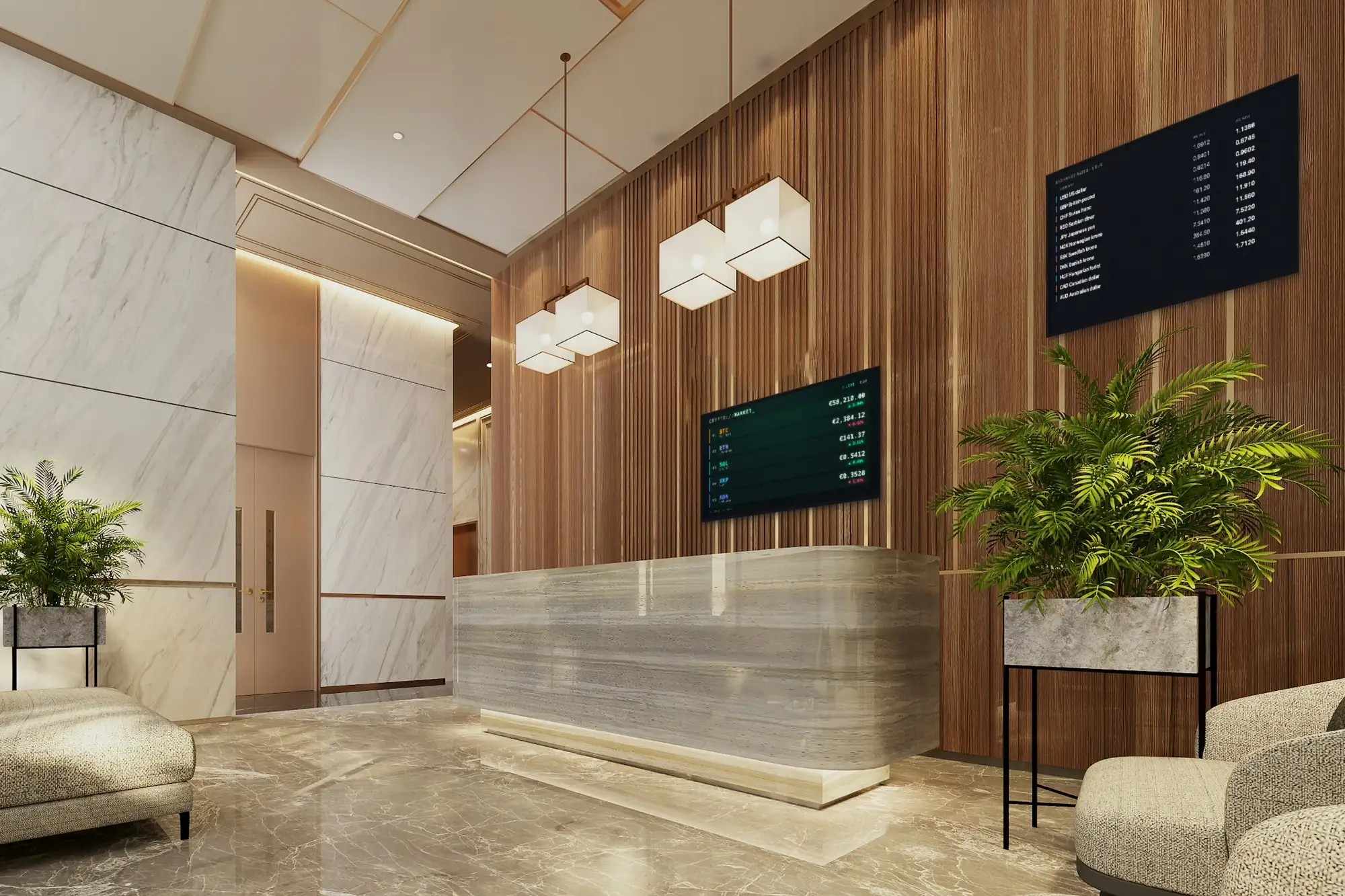
A rate board went up on the slatted wall — the office’s own buy and sell rates from a Google Sheet — with crypto prices on a second screen above the desk. Drag the line to see both.
 BeforeAfter
What the screens do in a bank or exchange office
Most branches — bank, credit union or exchange office — start with the rate board and add the rest once it runs. Each of these is an app in the dashboard, included in the plan.
Your exchange rate board
Keep your buy and sell rates in a Google Sheet — currency, buy, sell — and the Google Sheets app shows it on the screen as a table. Change a cell, and every screen showing the sheet follows within a minute or two.
Reference rates, labelled as such
The Exchange rates app shows the day’s market rates from a public source, updated once a day. Useful as context; not the rate anyone gets at your counter, so the screen should say so.
Markets and headlines
Crypto prices for up to five coins with their 24-hour change, shown for information. Financial news from an RSS feed or from BBC, The Guardian and the other news apps, and a Ticker of headlines over everything on the screen.
Loans, savings and offers
A campaign made in Canva or Google Slides plays between the rates. When marketing changes the design, the screen shows the new version.
QR codes for the details
The QR code app opens the offer’s page on your website, the branch page or a Google review. The terms are read on a phone instead of being squeezed onto the screen.
Hours, notices and the clock
Opening hours and notices in the Text app, a Clock for the hall, and Emergency Alert for the moment a branch has to tell everyone at once.
What changes when the rates are on a screen
The difference shows up in who changes the board, how fast, and what you can show afterwards.
One sheet, every board
No plastic digits to swap, no board to reprint. The rates live in one sheet, and every screen that shows it, in every branch, shows the same numbers.
Your rates and reference rates kept apart
Your rates come from your sheet; reference rates come from the Exchange rates app. Zones splits the screen so each sits in its own panel, with a Text panel saying which is which.
Every branch on the same campaign
One playlist can play in every branch. A savings offer starts on the same day everywhere and comes down everywhere when it ends.
A record of what was shown
Every screen logs what it played and when. The playback report — a PDF for one screen or all of them, exported or emailed on a schedule — shows which notice ran on which screen, and when.
The right people change the right things
Invite people with their own login: Admins run the account, Members change content, Viewers look and change nothing. Head office runs the campaigns; branches see what is on.
Screens you can see from head office
Every player reports what it is playing and when it was last seen. A dark screen in a branch shows up in the dashboard without anyone having to phone.
What you need
No installer, no server and nothing to install on the bank’s network — and we sell none of the hardware. Use what your IT team already buys, or what a shop has in stock.
Commercial displays
Any screen with an HDMI input works, but a banking hall runs all day, and a commercial display built for long hours earns its price there. In an exchange office window, buy for brightness: the rates have to read through glass in daylight.
Something to run the player
An Android TV box or stick (Android 8 or newer), or a display running Android TV or Google TV, which takes the app directly. A Windows PC runs the SignageStack app for Windows.
A wired connection where you can
Behind a counter, a cable is steadier than Wi-Fi. The player needs the internet to pair and to receive changes; if the line drops, it keeps playing what it has stored.
A SignageStack account
Free for 21 days with every feature on one screen, no card. Then €11 per screen a month or €100 a year. For a network of branches, Enterprise adds volume pricing, a signed DPA and an uptime SLA.
Setting it up, from bare wall to rate board
The first screen takes about as long as mounting it; the rest of the work is the sheet and the campaigns.
Mount the screen, plug in the box
Behind the counter, facing the queue; in an exchange office, in the window, facing the street. Plug the Android box into the HDMI input and the power. Landscape for a wide rate table, portrait for a narrow window: the orientation is a setting on the screen in the dashboard.
Install the player and pair it
Install the SignageStack player on the box. The screen shows a six-character code; in the dashboard choose Add screen, type it, and give the screen a name you will recognise, like “Branch 4 — counter”.
Connect the rate sheet
Add the Google Sheets app, sign in with Google and pick the spreadsheet with your rates. If you want reference rates too, add the Exchange rates app with your base currency; campaigns come in from Canva or Google Slides.
Build the playlist and publish
Put the rate board, the campaigns and a QR code in a playlist, switch the Ticker on for the screens that should carry headlines, set the branch’s working hours and publish. It is on the wall within seconds.
Changing the screens day to day
Rates change in the sheet. Everything else changes in the dashboard, from a desk or a phone, with a login of your own.
- New rates: edit the sheet, and within a minute or two every board that shows it follows — in every branch.
- Reference rates: nothing to do. The Exchange rates app picks up the new day’s rates on its own.
- A loan or savings campaign: switch it on in the playlist the day it starts and off the day it ends. The screen does not swap campaigns by date on its own.
- A holiday closing or new opening hours: a Text notice in the playlist, and the screen’s working hours changed to match.
- A branch closes at short notice: Emergency Alert covers that branch’s screens within a second, even outside their working hours.
- Month end: export the playback report, or have it emailed to whoever keeps the record.
Apps banks and exchange offices run
All included in every plan. The board with your own rates comes first; these fill the rest of the screen.
- Google SheetsPut a Google Sheet on the wall
- Exchange ratesDaily currency exchange rates
- Crypto pricesLive cryptocurrency prices
- TickerScroll announcements across the screen
- RSS feedShow the latest stories from any feed
- CanvaShow a Canva design on your screens
- QR codeShow a scannable QR code
- Emergency AlertFull-screen urgent message
Where the screens go
Digital signage in banks works when each screen has one job. A branch has four places where a screen earns its keep, and people read each one differently.
Behind the counter is where people look while they wait their turn. In an exchange office this is the exchange rate board: every currency, the buy rate and the sell rate, readable from the door. In a bank branch it hangs above the cash and currency counter, beside the notices people should read before they reach the window.
In the window of an exchange office, the board is read from the street, often by someone comparing your rates with the office across the road. A portrait screen with the currencies people actually change does more here than the full list. Behind glass, brightness matters more than size.
In the waiting area, people sit with a few minutes to spare. This is the place for the savings campaign, the loan offer with a QR code to its terms, a few financial headlines and the clock. In a credit union, it is also where members see what their credit union is doing this month.
In the ATM lobby, the screen is seen when the branch is closed. Set its working hours to always, or to the hours the lobby is open, and keep it to what makes sense at midnight: the opening hours, a QR code to the website, a notice about the branch.
Your rates, and the reference rates
Most people who ask for a currency exchange rate display want one of two things, and they are not the same. Get this part right before anything else: a customer must never mistake one kind of rate for the other.
Your own buy and sell rates are the ones a customer gets. They go on the screen from a Google Sheet: one row per currency, with columns for the currency, the buy rate and the sell rate. The Google Sheets app shows the sheet as a table and follows it on its own, so an edit reaches the screen within a minute or two. Keep the board on the first tab of the spreadsheet, because that is the one the screen shows, and set the decimals in the sheet, because the screen shows each cell the way the sheet formats it. For a short list, the Menu board app works as a price list typed in by hand, though each line carries one price, so a sheet suits buy and sell side by side better.
Reference rates come from the Exchange rates app: daily market rates from a public source, one rate per currency against your base currency, updated once a day, with the date on screen. They show how the market moved. They are not an offer, and they are not your rates. If you show them, label them: Zones splits a screen into panels, so the reference rates can sit in one with a Text panel beside it saying what they are. If you want an official rate on the wall, such as your central bank’s, enter it in your sheet with its name next to it.
How big, and which way up
Measure from where people actually stand. For a table read line by line, the furthest reader should be no more than about four screen heights away: a 32" to 43" screen for a counter two or three metres from the queue, 43" to 55" across a waiting area. The hardware guide has the full table.
A rate table with three columns reads well in landscape above a counter. A window is often narrower, and a portrait screen runs the list down the glass. Decide on the day you mount the screen — the mount and the cable follow from it — and set the orientation on the screen in the dashboard.
Writing for a screen in a branch
People read these screens standing in a queue, or sitting for a few minutes between other things. Write for that.
- Give the rates room. The rate table is the one thing people come to read. Give it a screen of its own, or the largest panel.
- One offer per slide. One product, one sentence, one image. The full terms go behind a QR code, not onto the slide.
- Let the right people check the slide. Advertising a loan or a savings rate usually comes with rules about what must go with it. The screen shows exactly what you put on it, so send slides through whoever checks your printed material.
- One clock, your own time. The Clock app shows one local time. There are no world clocks; if you want New York and Tokyo on the wall, this is not the app for it.
Keeping it right across branches
Give the rate sheet one owner, or a small group, and share it in Google with editing rights for them alone. Everyone else gets a SignageStack login of their own and a role: Admins run the account, Members change content, Viewers look without changing anything. Marketing can run the campaigns for every branch while a branch manager checks what is on without being able to change it.
One playlist can play in every branch, and a change to it reaches every screen within seconds. A branch whose rates differ gets its own sheet and its own playlist.
Look at the screens list in the dashboard now and then. Every player reports what it is playing and when it was last seen. In an exchange office this matters more than anywhere: a screen that has lost its connection keeps showing the last rates it received, and the dashboard is where you notice.
The playback report shows what each screen played and when, as a PDF for one screen or the whole network. Schedule it to be emailed to a list, and the record of which notice ran where keeps itself.
Mistakes that are easy to avoid
- Reference rates presented as your rates. The quickest way to an argument at the counter. Label them, or leave them off.
- A sheet everyone can edit. One wrong keystroke is on every board within minutes. Keep editing rights narrow.
- Anything about one customer on a screen. No names, no account details. The screens are for everyone in the room.
- A window screen too dim for daylight. If you cannot read the sell rate from the pavement at noon, nobody can.
- Campaigns that outlive their offer. Switch them off the day they end; the screen will not do it by itself.
Questions banks and exchange offices ask
No. It shows daily market reference rates from a public source, updated once a day: one rate per currency, with the date. That is not the rate a customer gets at your counter, and it should not be presented as one. Your own rates go on the screen from a Google Sheet — an edit shows within a minute or two — or typed into the Menu board used as a price list.
No. There is no connection to core-banking, treasury or rate systems. The screen shows a Google Sheet; if your rates already end up in one, the screen can show it, and how they get there is up to you.
No. There is no queue-number system, and nothing about individual customers goes on a screen. The screens show what you put in the playlist, the same to everyone in the room.
We make no claim about that. Your institution decides what its regulator requires on display, and the screen shows exactly what you put on it. What the product gives you is a record: the playback report shows which notice ran on which screen, and when.
The screen keeps playing, and the rate table holds the last values it received until the connection returns. If your rates change in the meantime, that board is out of date — the dashboard shows when each screen was last seen, so you know which one.
€11 per screen a month or €100 a year, every app included; for a network of branches, Enterprise adds volume pricing, a signed DPA and an uptime SLA. Nothing is installed on your network and there is no server: the dashboard runs in a browser, the player on each screen.
Read next
- Digital Signage Features — Apps & PlaylistsScreens, playlists, working hours, 32 built-in apps, split-screen zones, proof-of-play reports, offline playback and team roles — all in one plan.
- Digital Signage Hardware — What to BuyWe do not sell hardware. What the player runs on, how big a screen needs to be, what to look for in a media player, and what is not worth paying for.
- Digital Signage Pricing — €11 per ScreenOne plan with every feature: €11 per screen a month or €100 a year. No setup fee, no per-user seats, no minimum. Free for 21 days, no card to start.
Three steps between a blank TV and a live one.
No server to run, no licence per seat, nothing to install on your network. A display, a power socket and an internet connection.