Digital signage for schools, colleges and universities.
Today’s notices, this week’s events from your Google Calendar and, when it matters, one urgent message on every screen at once — in the corridors, the entrance hall and the canteen, changed from a phone or a laptop.
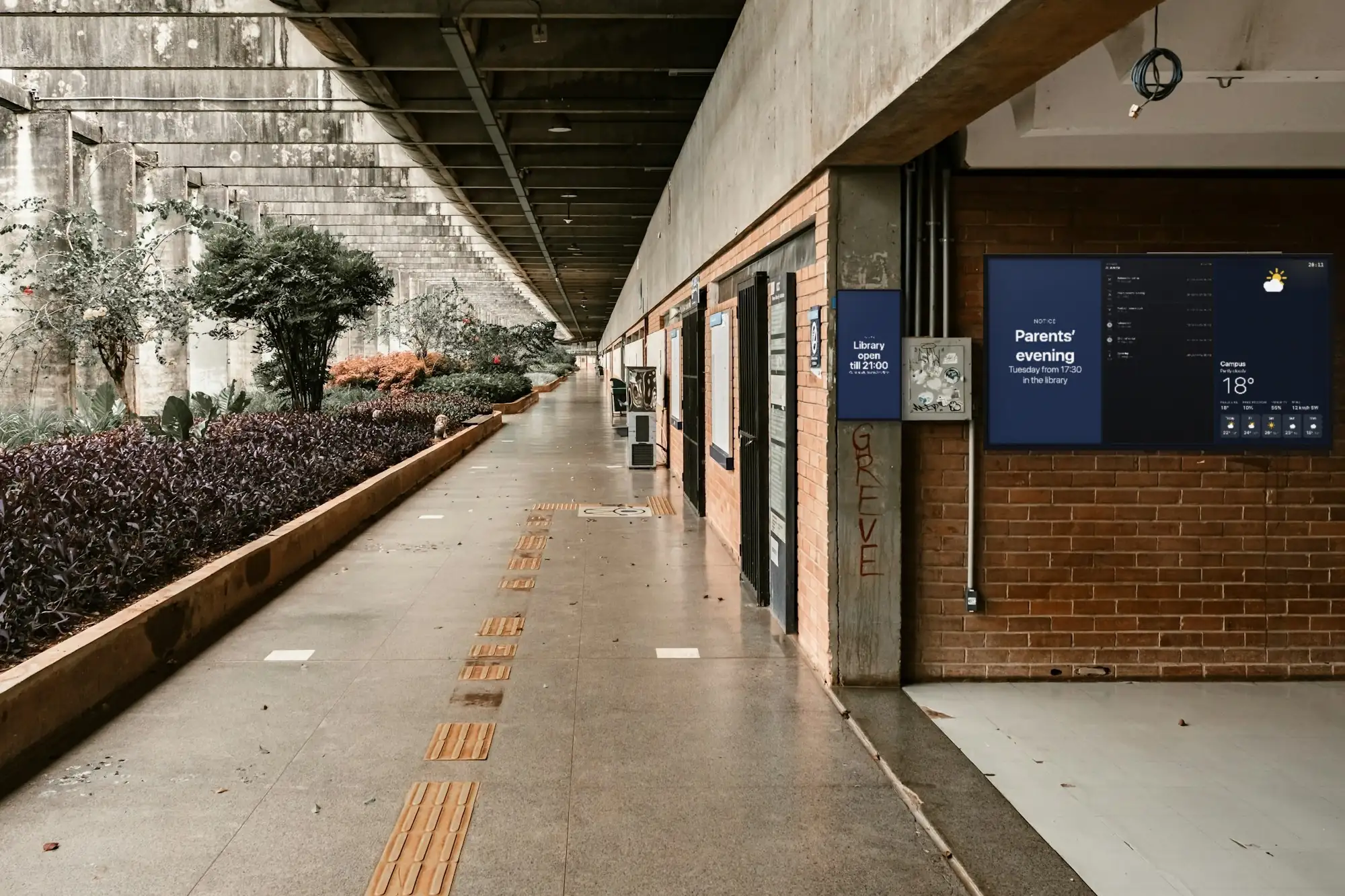
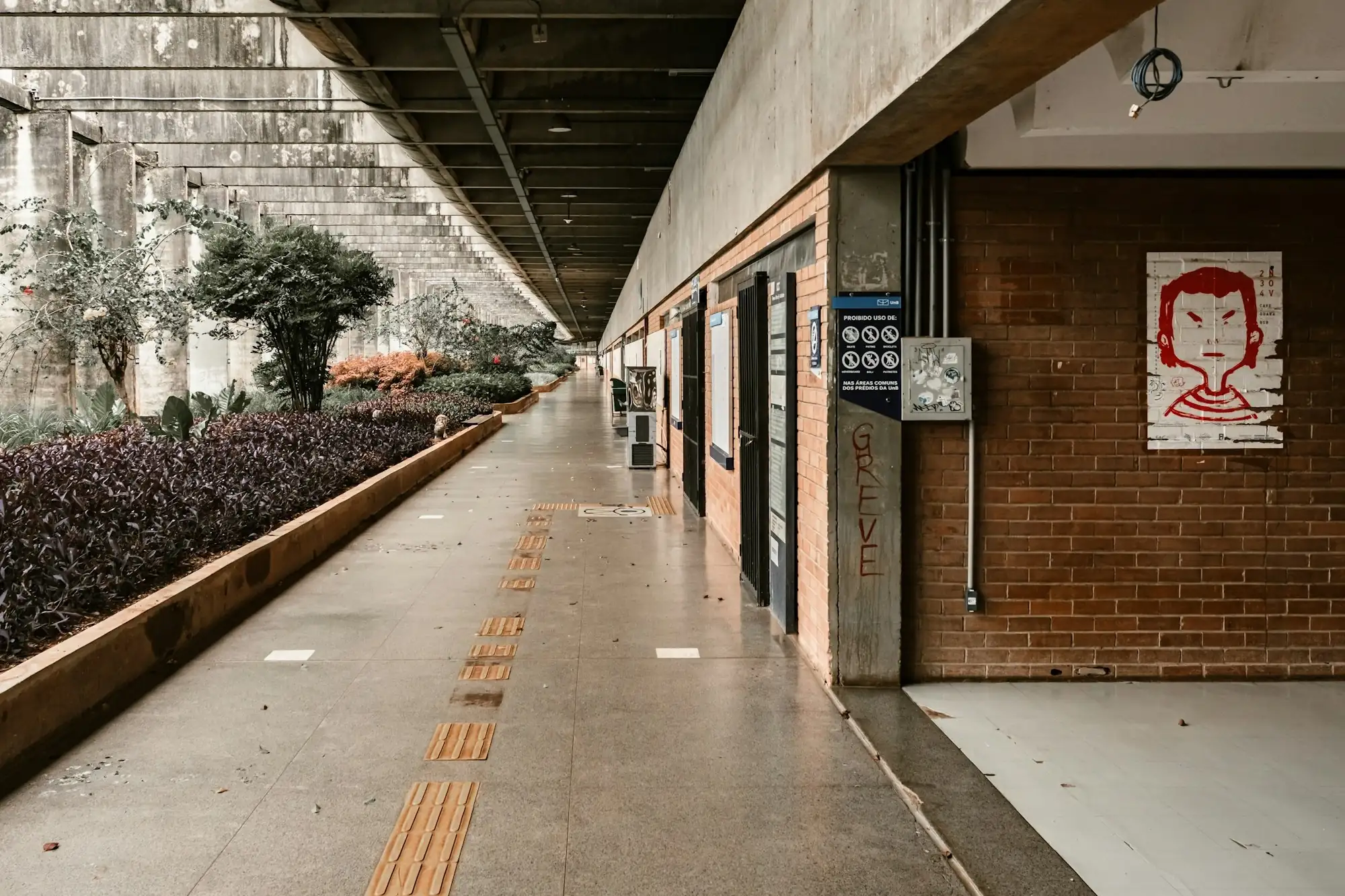
The same hallway, before and after
The poster on the brick wall made way for one wide screen in three panels: a notice, this week’s events from a Google Calendar and the weather. The sign on the pillar became a portrait screen. Drag the line to see both.
 BeforeAfter
What the screens do in a school
Start with notices and the calendar, and add the rest as the term goes on. Each of these is an app in the dashboard, included in the plan.
Notices where everyone walks
A Text item for today’s announcement — a room change, a club meeting, lost property — and the Ticker for one-liners that run along the top or bottom of the screen, over everything else.
This week, from the school calendar
The Google Calendar app shows a calendar you already keep, in the week or the schedule view: parents’ evenings, matches, open days. Add an event in Google Calendar and the screen shows it; nothing is typed twice.
One urgent message on every screen
Emergency Alert puts a full-screen headline in red, amber or blue on the screens you choose, within a second of being switched on in the dashboard — including screens that are dark outside their working hours.
Counting down to the date
Countdown counts the days to the exams, the school play or the end of term, and shows your own message when it reaches zero. Public holidays lists the country’s next ones.
Slides the students make
The student council or a club keeps a deck in Google Slides or a design in Canva; the screen plays it and follows every edit. Match results, club posters, photos from the trip — without the students needing a login to the dashboard.
The weather, a QR code and something to read
Weather and Air quality by the main door; a QR code that opens the trip sign-up form or the school website; On this day and Daily Wisdom in the canteen or the library, for the minutes people wait.
What changes when the noticeboard is a screen
Less paper on the walls, and fewer notices that outlive their date.
Every corridor says the same thing
One playlist can go on every corridor screen in the building, or on every campus. Change a notice once and each screen showing it updates within seconds; no copies to print for each board.
The calendar is entered once
The office keeps the events in Google Calendar, as it already does. The screen reads that calendar and never writes to it, so the corridor and the calendar do not drift apart.
One switch for an urgent message
The alert is written in advance and left switched off. When it is needed, one switch in the dashboard puts it on every chosen screen within a second — a visible message alongside your alarm, not instead of it.
Contributions without handing out the keys
Students and clubs edit their own Slides deck or Canva design; staff who change content log in as Members; anyone who only needs to look is a Viewer and changes nothing.
Dark when the building is empty
Working hours turn each screen off after the school day and on again in the morning, on the screen’s own clock, even with the network down. Nobody walks the corridors with a remote.
Still showing when the network is not
The playlist, its media and its working hours are stored on the screen. If the school network drops, the screens keep playing; live apps hold their last value, and changes arrive when the connection returns.
What you need
No server and nothing to install on the school network, and we sell none of the hardware — use what the school has, or what its usual supplier stocks.
Screens built for a school day
Any TV or commercial display with an HDMI input. A consumer TV is fine for the staff room; a corridor screen that runs all day is where a commercial display, rated for long daily hours, earns its price.
Something to run the player
An Android TV box behind the screen (Android 8 or newer), or a TV running Android TV or Google TV. A PC already at reception or in the library can run the SignageStack app for Windows.
A network connection
Wired ethernet is worth the cable run in a long corridor; Wi-Fi works too. The screens need it to pair and to receive changes; playback carries on without it.
A SignageStack account
Free for 21 days with every feature on one screen, no card. Then €11 per screen a month, or €100 a year. A university or a group of schools can ask for volume pricing and a signed DPA.
Setting it up, from box to corridor
The first screen takes about as long as mounting it; the rest is deciding what the school wants to say.
Mount the screen, plug in the box
Put the first screen where everyone passes — the main corridor, the entrance hall, the way to the canteen — and plug the Android box into its HDMI input and the power. Landscape or portrait is a setting on the screen in the dashboard.
Install the player and pair it
Install the SignageStack player on the box. The screen shows a six-character code; in the dashboard choose Add screen, type it, and give the screen a name anyone can find, like “Ground floor — by the stairs”.
Build the content
Add a Text announcement, connect the school’s Google account and pick the events calendar, add the weather for your town. Write the Emergency Alert now as well, choose its screens and leave it switched off.
Playlist, working hours, publish
Put the items in one playlist and add it to every corridor screen. Set each screen’s working hours to the school day and publish. The screens show it within seconds.
Through the school week
Whoever looks after the screens — the office, a teacher, IT — does this from a phone or a laptop, with a login of their own.
- A notice for today: add a Text item or a Ticker line in the morning, and switch it off when it has passed.
- New events: add them to Google Calendar as usual. The screen picks them up; there is nothing to do in SignageStack.
- Exam week: switch on the exam countdown and the quiet-please notice, and switch off the club posters. The screens do not follow the bell or the timetable on their own.
- The student council’s slides: they edit their deck, and the screen shows the new version.
- Evenings and weekends: each screen goes dark after the school day and comes back in the morning. Working hours follow the days of the week, not the term dates, so change them before a long break.
- New staff: invite them as Members to change content, or as Viewers to look without touching.
Apps schools run
All included in every plan. These are the ones a school reaches for first.
- Emergency AlertFull-screen urgent message
- Google CalendarShow upcoming events from a Google Calendar
- TextShow a message or announcement
- TickerScroll announcements across the screen
- CountdownCount down to a moment — or up since one
- Google SlidesLoop a private Google Slides deck from your account
- WeatherLive local weather on your screens
- QR codeShow a scannable QR code
Where the screens go
A school has more walls than places worth a screen. Put them where people pass or where they wait, and give each place the content it is looked at for.
The main corridor, at the junction everyone crosses between lessons, is the screen that does the most work. It is read on the move, in a few seconds, by people who pass it several times a day — so it is the school's digital notice board: today's notices, this week's events and little else.
The entrance hall is read by visitors as much as by students: parents at the end of the day, families on an open day, the delivery driver looking for the office. A welcome, the week's events, the weather and a QR code to the school website belong here.
The canteen and the library are where people stand or sit for longer. This is the place for the student council's slides, club posters, photos from the trip, On this day or a Daily Wisdom quote.
The staff room gets a playlist of its own: today's cover lessons from a Google Sheet, staff meetings from the calendar, reminders nobody else needs to read.
In higher education the same pattern repeats in every building on campus, with one more place: the door of a lecture hall, where a portrait screen can show that room's day — if the room has a Google Calendar of its own.
Size, height and which way up
Measure from where people actually read the screen. In a corridor that is often four or five metres, which calls for a 55" to 65" screen. An entrance hall or an atrium read from five metres and more wants 75" and up. A portrait screen by a lecture-room door is read up close, and 32" to 43" is plenty. The hardware guide has the full table.
Hang corridor screens high enough to be seen over a crowd and out of the way of bags and elbows, but keep the box behind them reachable for whoever looks after them. Decide portrait or landscape before you drill: a week view of the calendar reads best in landscape, a schedule list by a door works in portrait. The orientation is a setting on each screen in the dashboard.
A corridor screen runs the whole school day, five days a week. A consumer TV is built for a few hours a day; a commercial display rated for long daily hours is the part worth spending on.
What goes on a corridor screen
A corridor screen is glanced at, not read. Someone walking to a lesson gives it a few seconds, so the playlist has to be short and every item has to make sense on its own. A good one has three things:
- Today's announcement, as a Text item — one message, large.
- This week's events from Google Calendar, in the week or the schedule view.
- The weather, or a countdown to the next date that matters.
Short notices that do not deserve a slide of their own go on the Ticker, which runs along the top or bottom of the screen over everything else.
Writing for a corridor:
- One notice per slide. Two messages on one slide means neither gets read.
- A date on every notice. “Choir practice moves to Thursday” means nothing a week later.
- A headline readable from the far wall. If it needs a second line to make sense, it is too long.
- Few items, each on long enough. Give every item enough seconds to be read at walking pace. In a long rotation, most people never see most of the items.
Letting others put things on the screens
The screens work best when the people with something to say can say it without queueing for one person. There are two ways to do that.
Through the tools they already use. The office keeps events in Google Calendar; the student council keeps a deck in Google Slides or a design in Canva. Connect each one once and put it in the playlist; from then on their edits reach the screens without anyone opening the dashboard. Whoever can edit the deck can change what is on the screen, so the deck's sharing settings are your approval step.
Through logins of their own. Invite the staff who change content as Members, and anyone who only needs to look — a head of department who wants to see what is planned — as Viewers, who see everything and change nothing. Keep Admin for the one or two people who run the system.
The emergency message, ready before it is needed
The Emergency Alert is the one item to set up on the first day and hope never to use. Write it in calm conditions: a short headline — “Evacuate the building” — a line of detail, and the severity colour. Choose the screens it covers, then leave it switched off. Prepare one for each situation your procedures name: an evacuation, an early closure, a severe-weather warning.
When it is needed, someone with a login switches it on in the dashboard, from a phone or a computer. Every chosen screen is covered within a second, including screens that are dark because they are outside their working hours. A screen that is offline at that moment shows it once its connection returns, and nothing can wake a TV switched off at the wall.
It is not connected to a fire alarm or a PA system: a person switches it on, and off again afterwards. Decide who that is, make sure they can log in from their phone, and include the screens in the next drill.
Keeping it right through the year
- Switch notices off when they pass. A screen still announcing last week's concert teaches everyone to stop reading it.
- Look at the screens list now and then. Every player reports when it was last seen and what it is playing, so a corridor screen that went dark shows up in the dashboard before anyone has to report it.
- Change working hours before a long break. They follow the days of the week, not the term dates.
- The Public holidays app lists the country's holidays, not the school's. Put half-term and the end of term in the calendar or in a countdown.
- Nothing personal on a corridor screen. If it would not go on the noticeboard by the entrance, it does not go on the screen.
Questions schools ask
No. The Google Calendar app only reads the calendar: it shows events and never books, changes or deletes anything. Booking stays in Google Calendar. If each room has a calendar of its own, a screen by the door can show that room’s day.
No. A person switches it on in the dashboard, from a phone or a computer; it is not connected to a fire alarm, a PA system or any sensor. Once on, it covers the chosen screens within a second, including those outside their working hours. It adds a message to your procedures — it does not replace the alarm.
No. SignageStack holds no student data and connects to no school information system. A timetable or a cover list kept in a Google Sheet can show as a live table; grades and attendance have no place on a corridor screen.
Not on their own. Working hours switch a screen on and off by the clock; the items in a playlist are switched on and off by hand. A notice that only matters at lunchtime either stays in the rotation all day or is switched on and off.
Very little. There is no server and nothing to install on the network: the screens need an internet connection, cable or Wi-Fi, and staff log in to the dashboard in a browser. Android boxes take the player app; a Windows PC runs the SignageStack app for Windows.
€11 per screen a month, so €110, or €100 per screen a year — €1,000. Prices exclude VAT, and every app is included. The 21-day trial runs on one screen with no card; a university or a group of schools can ask for volume pricing.
Read next
- How Digital Signage Works — in 3 StepsPair a display with a six-character code, build a playlist, set its hours. What you need, what happens when you publish, and what a screen does offline.
- Digital Signage Hardware — What to BuyWe do not sell hardware. What the player runs on, how big a screen needs to be, what to look for in a media player, and what is not worth paying for.
- Digital Signage Pricing — €11 per ScreenOne plan with every feature: €11 per screen a month or €100 a year. No setup fee, no per-user seats, no minimum. Free for 21 days, no card to start.
- What to show on school digital signage, and who keeps it currentWhat to put on school corridor, reception and staff room screens, who keeps them current, and how to run them on a school budget with the TVs you have.
- Digital bulletin board: how to replace the paper notice boardHow to swap a paper notice board for a screen: what to post, who can post, how old notices come down, and what one screen costs to run.
Three steps between a blank TV and a live one.
No server to run, no licence per seat, nothing to install on your network. A display, a power socket and an internet connection.