Digital signage for clinics and waiting rooms.
A welcome, the practical details, the time and a line from reception when the doctor is running late — on the waiting-room screen, changed in seconds, and dark when the practice is closed.
The same waiting room, before and after
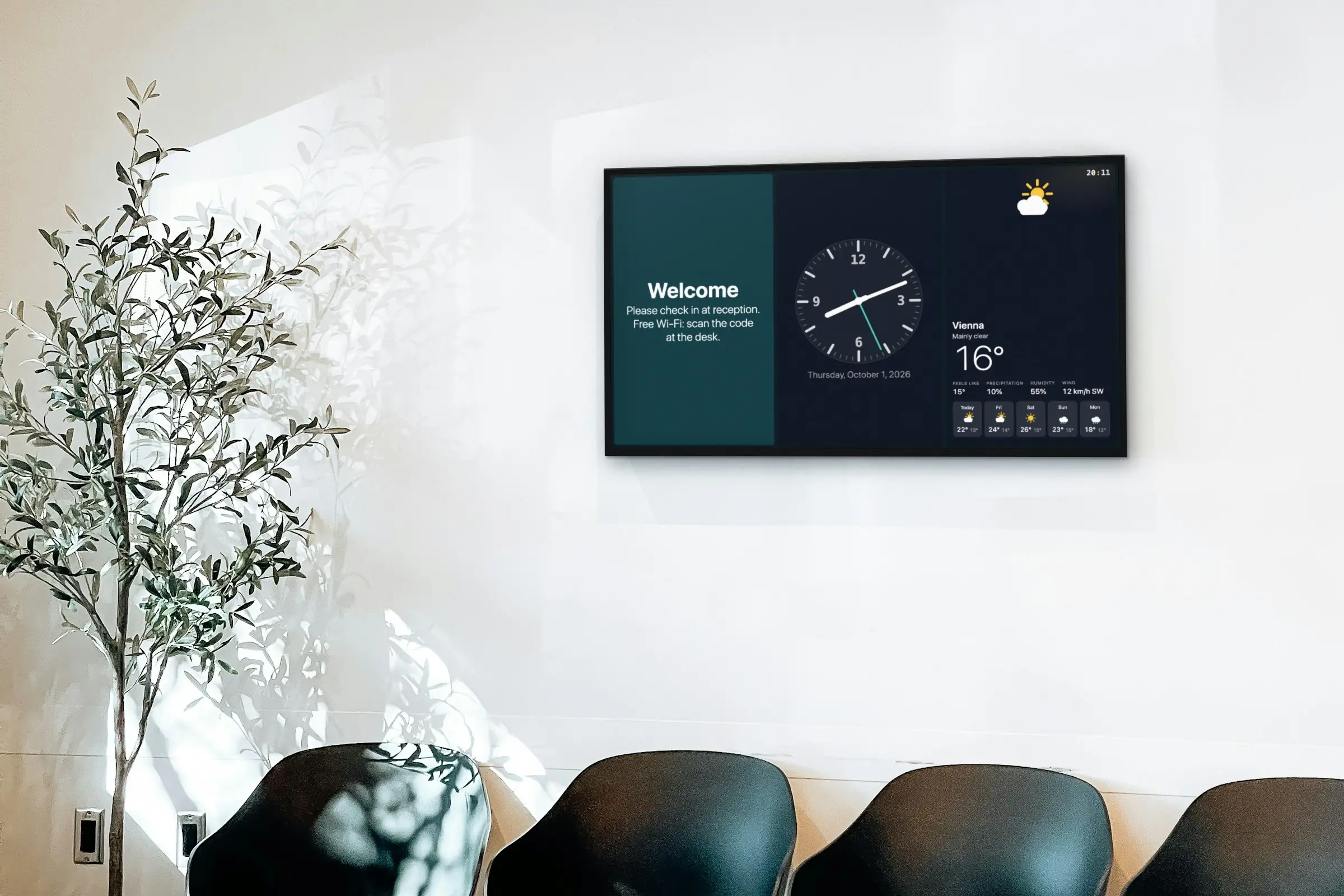
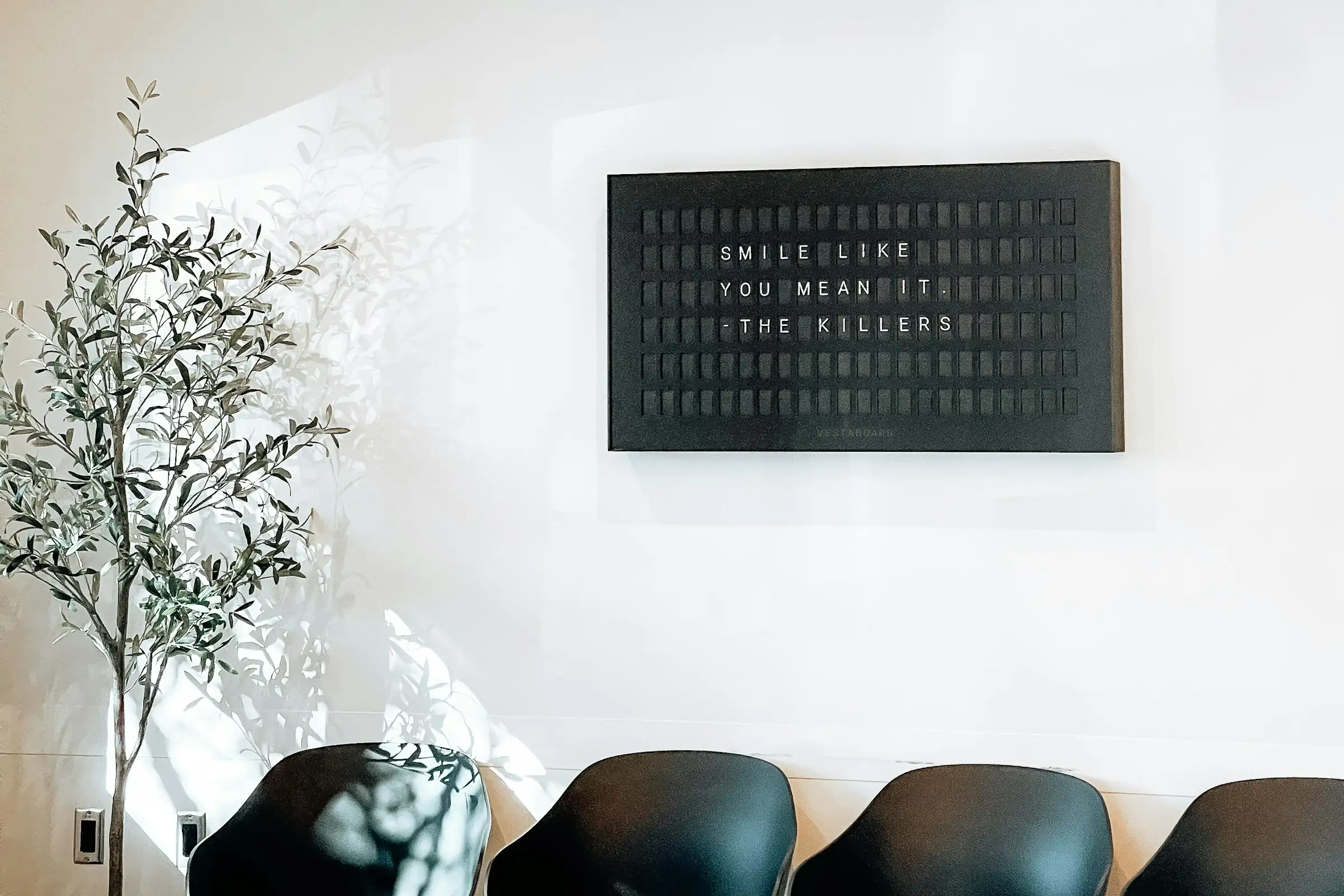
The letter board came down and one screen in three panels went up: a welcome with what to do on arrival, the time and today’s weather. Drag the line to see both.
 BeforeAfter
What the screen does in a waiting room
Most practices start with a welcome and a clock, and add the rest once reception is used to it. Each of these is an app in the dashboard, included in the plan.
A welcome and the practical details
The Text app puts up what reception is asked all day: the opening hours, how to check in, where the toilets are. Zones sets it beside the clock and the weather, so all three are on the wall at once.
The time and the weather
People who are waiting check the time. The Clock app shows it as a digital or analogue clock, a split-flap board, orbit rings or words; Weather shows the sky outside and the forecast for your town.
Running late, said once
When the morning slips, reception types it into the Ticker — “Dr Lang is running about 20 minutes late” — and within seconds it runs along the bottom of the waiting-room screens, over everything else. It comes down once the doctor has caught up.
Health campaigns you already have
The flu-vaccine poster, a leaflet on looking after a new filling, a national screening campaign: a PDF plays page by page, and a Canva design re-exports itself when you edit it. What the screen says is the practice’s own material.
Something calm between the notices
Daily Wisdom shows a few quotes on Health & wellness or Life, new every day. A slow nature film from YouTube, with the sound off, fills the gaps without asking for attention.
QR codes for the next step
The QR code app opens your booking page or joins the guest Wi-Fi — scanned from the chair instead of asked at the desk. A code for a Google review works best by the exit, for people who have been seen.
What changes when the notices are on a screen
The difference shows up at the reception desk and on the noticeboard.
The same questions, answered on the wall
Opening hours, the Wi-Fi, how to check in, where the toilets are: when the answer is on the wall in front of the chairs, people read it instead of queuing at the desk to ask.
Notices that come down on time
Paper notices pile up, curl at the corners and outlive their dates. On the screen a notice goes when you switch it off in the playlist, and a new one is up within seconds of publishing.
A delay told to the whole room
One line in the Ticker reaches every chair at once. Reception writes it once instead of explaining it to each patient who comes to the desk to ask.
One switch for an urgent message
Write an Emergency Alert in advance — an evacuation, a closure — and leave it off. Switched on from the dashboard, it covers the screens you chose within a second, even those dark for the night, and stays up if the connection drops.
Every practice from one dashboard
A group of practices runs from one account: the shared campaigns in one playlist on every screen, each practice’s hours and notices in a playlist of its own. A change reaches every screen showing it within seconds.
Still on when the internet is not
The playlist, the media and the working hours are stored on the screen. If the connection drops the screen carries on, the weather holds its last reading, and changes arrive when the connection is back.
What you need
None of it needs an installer, a server or anything from your practice software — and we sell none of it.
A screen
Any TV or commercial display with an HDMI input. For chairs three to four metres away, that means 43" to 55". A screen that runs from the first appointment to the last is a job for a commercial display built for long hours.
Something to run the player
An Android TV box or stick behind the screen (Android 8 or newer), or a TV running Android TV or Google TV, which takes the app directly. A computer with a browser works too — just not the one at reception.
A connection, kept apart
Cable or Wi-Fi with internet access, to pair the screen and receive changes. The player needs nothing from the computers that hold patient records, so it can sit on a separate network.
A SignageStack account
Free for 21 days with every feature on one screen, no card. Then €11 per screen a month, or €100 a year.
Setting it up, from bare wall to first patient
The first screen takes about as long as hanging it; most of the work is deciding what the room needs to know.
Hang the screen, plug in the box
Mount it on the wall the chairs face — above the heads, low enough to read sitting down — and plug the Android box into its HDMI input and the power. Landscape fits a welcome beside a clock; the orientation is a setting on the screen in the dashboard.
Install the player and pair it
Install the SignageStack player on the box. The screen shows a six-character code; in the dashboard choose Add screen, type it, and give the screen a name you will recognise, like “Waiting room — main wall”.
Write the welcome, add the rest
Add a Text app with the welcome and the practical details, a Clock and the Weather for your town, and set the three side by side with Zones. Write an Emergency Alert now, while it is calm, and leave it switched off.
Set the hours and publish
Put the layout in a playlist with a campaign and a QR code, add it to the screen, set the practice’s hours for each weekday and publish. It is on the wall within seconds.
Changing the screen day to day
Reception does most of it, from the desk computer or a phone, with a login of their own.
- Running late: reception types it into the Ticker and it runs over everything on the waiting-room screens within seconds. When the doctor has caught up, they take it down.
- A doctor on leave, a locum this week, a change to the hours: edit the welcome text and publish.
- A campaign season: add the PDF or the Canva design to the playlist when it starts and switch it off when it ends. Nothing takes it down by itself.
- Evenings and weekends: each screen goes dark when the practice closes and comes back when it opens, on its own clock — even with the network down.
- Another practice: pair its screens and give them the shared playlists; its own hours go in a welcome of its own.
- Roles: reception as Members to change content, the practice manager as Admin, and anyone who only needs to look as a Viewer.
Apps practices run
All included in every plan. These are the ones a waiting room reaches for first.
- TextShow a message or announcement
- ClockShow the current time on your screens
- WeatherLive local weather on your screens
- ZonesSplit one screen into several panels
- TickerScroll announcements across the screen
- QR codeShow a scannable QR code
- Daily WisdomA new quote on the wall every day
- Emergency AlertFull-screen urgent message
Where the screen goes
A practice has one room where a screen does most of its work: the waiting room. People sit there with little to do but look up, and they see whatever is on the wall more than once — so the screen goes where the chairs face, not where the staff stand.
On the wall the chairs face. If the room is L-shaped or split by a pillar, two smaller screens running the same playlist serve it better than one large screen half the room cannot see.
By the entrance or the desk. A second screen, in portrait, where people come in carries what they need first: how to check in, where to wait, which corridor leads where. It is read standing, so it holds less.
Not in the treatment rooms. There the patient is talking to the clinician, and a screen only competes.
The same holds for a GP surgery, a dental practice, a physiotherapy clinic or a vet. In a medical centre or a small hospital, give every waiting area its own screen, named in the dashboard after its room. A pharmacy is the exception: people stand in a queue at the counter, so the screen works more like a shop's — short messages, the opening hours, which pharmacy is on duty tonight.
How big, how high, and how loud
Measure from the back row of chairs, not from the door. Across a waiting room three to four metres deep, the hardware guide puts the screen at 43" to 55"; a larger waiting area or a hospital corridor wants the next size up.
A waiting room is read sitting down, so hang the screen lower than you would above a shop counter: high enough to clear the heads of people standing at the desk, low enough that nobody in a chair has to tip their head back for the length of a wait.
Landscape suits the main wall, where Zones can set the welcome, the clock and the weather side by side. Portrait suits the entrance. The orientation is a setting on each screen in the dashboard; decide it on the day you mount the screen, because the bracket and the cable length follow from it.
Then turn the sound off. Reception calls names, the phone rings, and some people in the room feel unwell. Choose video that works in silence — a slow nature film, a campaign clip with its words on screen — and turn the TV's volume down.
What goes on it
A waiting-room playlist should be short and calm. People see it several times during one wait, so nothing in it needs to shout.
- The welcome, holding the screen longest: the practice's name, the opening hours, how to check in and the guest Wi-Fi. With Zones, the time and the weather stay beside it the whole time.
- One campaign at a time — this season's vaccination poster as a PDF, or a design the practice made in Canva.
- A QR code that opens your booking page, so the next check-up can be booked from the chair.
- Something calm — Daily Wisdom set to Health & wellness and Life, or a nature video from YouTube.
Over all of it, the Ticker carries whatever reception needs to say today: a delay, a doctor who is off, a change to this week's hours. It is not a slot in the playlist: you pick the screens it runs over in its own settings, and it stays until someone takes it down.
A QR code for a Google review belongs by the exit rather than in front of the chairs: ask the people who have been seen, not the ones still waiting.
Writing for people who are waiting
People in a waiting room are often anxious, sometimes in pain, and not always reading in their first language. Write for them.
- Plain words, large type. “Please tell reception you have arrived” works for everyone. Keep the medical terms for the consultation.
- Nothing frightening. A poster that works in a corridor can be too much on a large screen facing a room with children in it. Look at every slide from the chairs before it goes up.
- Two languages when your patients need them. If many of your patients read another language more easily, write the welcome in both.
- Nothing about a patient, ever. No names, no appointment times, no “next patient”. The screen is for what everyone in the room may read.
The health information on the screen is the practice's own. SignageStack shows what you put on it and gives no medical advice, so check each slide as you would a printed leaflet before it goes up.
Keeping it right
A waiting-room screen still showing the winter flu clinic in spring tells patients that nobody looks at it. Give one person — usually the practice manager — the job of reading it from the chairs once a week, and give reception their own logins as Members, so the day's notices never wait for that person. A Member can change any content in the account; a Viewer can see everything and change nothing.
Set each screen's working hours to the practice's hours. Outside them the screen goes dark and comes back when the practice opens, on its own clock, even if the internet is down. One thing does reach a dark screen: an Emergency Alert, which covers the screens you chose within a second of being switched on. Write it on a calm day and leave it off.
Look at the screens list in the dashboard now and then: every player reports when it was last seen and what it is playing, so a screen that went dark shows up there before a patient mentions it.
Mistakes that are easy to avoid
- A delay still up at the end of the day. “Running 20 minutes late” at five o'clock tells the room something untrue. Whoever writes the line takes it down.
- The reception computer as the player. A TV plugged in as its second monitor is one misplaced window away from showing a patient record to the room. Use a small box behind the screen instead.
- Too much at once. Four panels of small text make a noticeboard again. In a small room, three zones are plenty.
- A screen that does not come back after a power cut. Check for automatic power-on in the TV's settings before you buy, and prefer a box that starts as soon as it gets power.
Questions practices ask
No. SignageStack has no queue or ticket system and cannot call a number or a name. If your practice uses a calling system, keep it for that; the SignageStack screen carries everything else.
No. It does not connect to appointment or patient-record systems — and nothing about a patient belongs on a waiting-room screen anyway: no names, no appointment times, no reasons for a visit. Keep it to what everyone in the room may read.
Reception types it into the Ticker, which runs along the top or bottom of the waiting-room screens, over everything else. It is there within seconds, and goes when reception takes it down.
The practice. SignageStack is not a medical device and gives no medical advice; it shows what you put on it. Material you already have — a PDF, a Canva design, a video — plays as it is.
No. The screens are not interactive — nobody taps them. For anything a patient does on their own, put a QR code on the screen that opens your booking page or your website.
€11 per screen a month, so €22, or €100 per screen a year, excluding VAT. Every app is included, and the 21-day trial runs on one screen with no card.
Read next
- Digital Signage Hardware — What to BuyWe do not sell hardware. What the player runs on, how big a screen needs to be, what to look for in a media player, and what is not worth paying for.
- 32 Digital Signage Apps, All IncludedMenu boards, clocks, weather, news, exchange rates, YouTube, Google Slides and Canva. Every app is included in the plan — nothing is an upsell.
- Digital Signage Pricing — €11 per ScreenOne plan with every feature: €11 per screen a month or €100 a year. No setup fee, no per-user seats, no minimum. Free for 21 days, no card to start.
- Waiting Room TV Content: What to Show and What to Leave OffWhat to put on the TV in a clinic, dental practice, vet or service-desk waiting room, what to leave off, and how to handle sound, pacing and privacy.
- Digital bulletin board: how to replace the paper notice boardHow to swap a paper notice board for a screen: what to post, who can post, how old notices come down, and what one screen costs to run.
Three steps between a blank TV and a live one.
No server to run, no licence per seat, nothing to install on your network. A display, a power socket and an internet connection.