Digital signage for retail stores.
Your sale, the time left on it and a QR code to your web shop, on the screens in the window and on the shop floor — changed from a phone, the same in every branch, and still playing when the Wi-Fi drops.
The same shop, before and after
The two display niches in the back wall became screens: the sale on one, a countdown to its end on the other, and the poster stand turned into a slim portrait screen. Drag the line to see both.
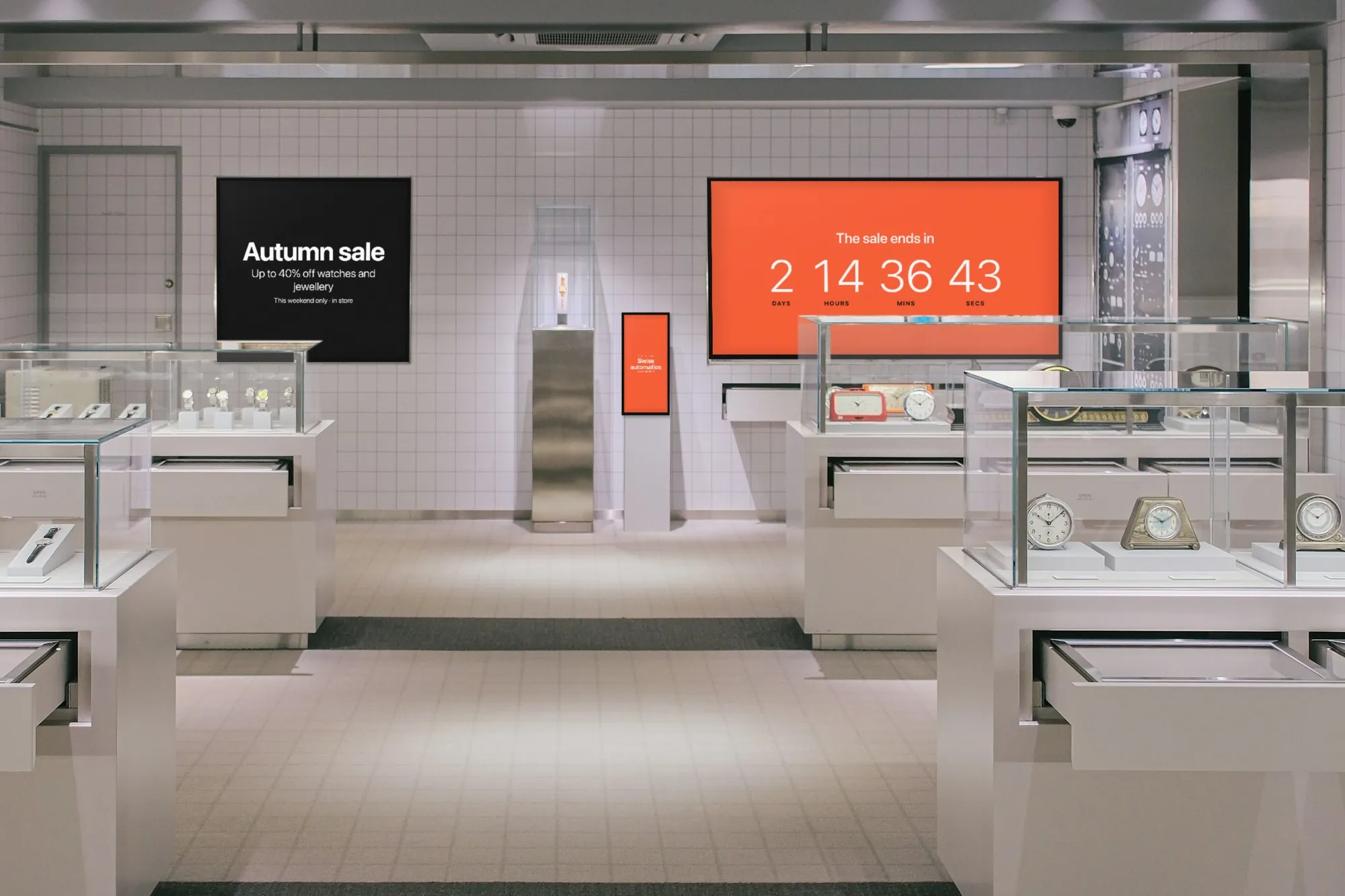
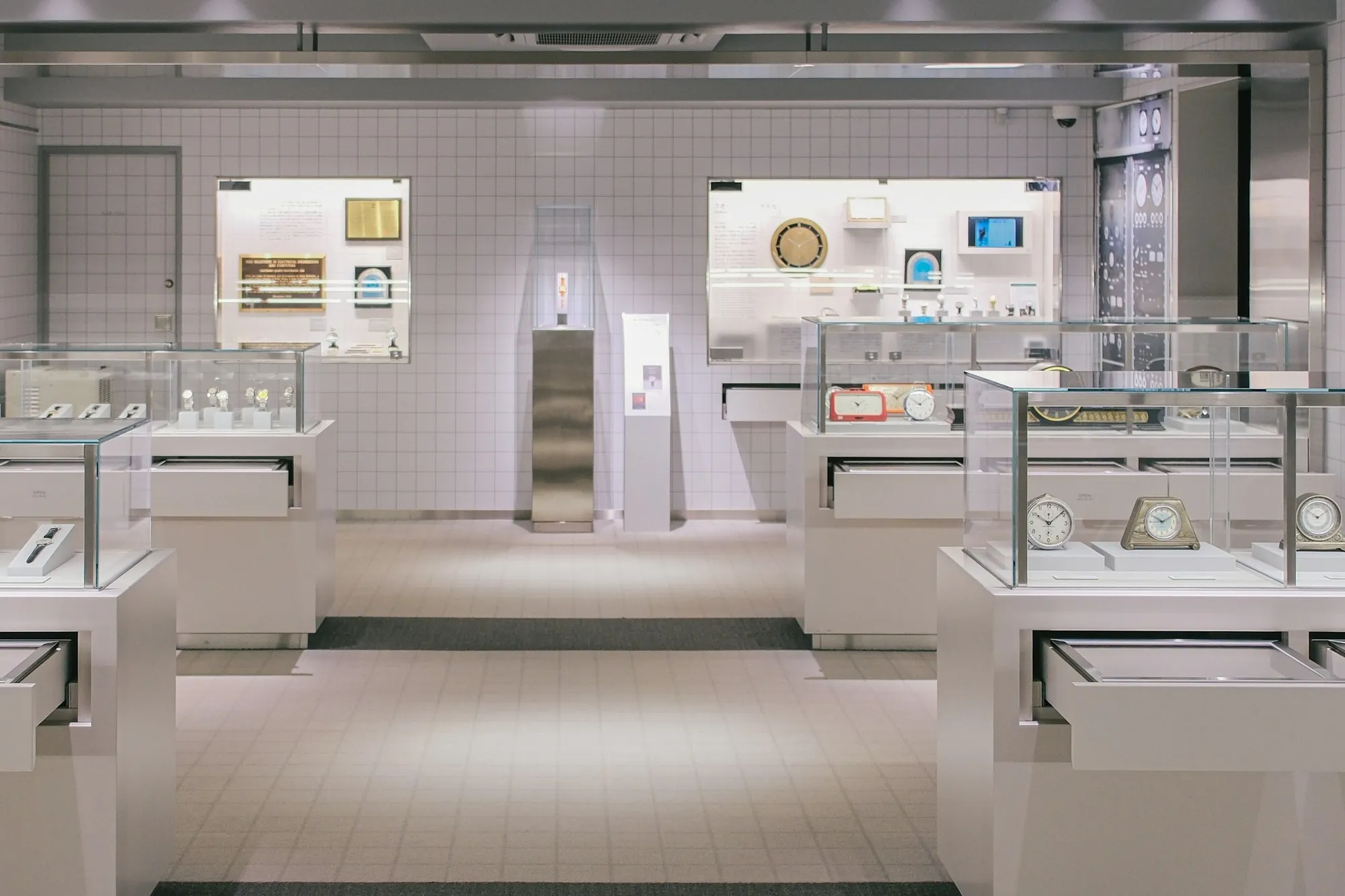 BeforeAfter
What the screens do in a shop
Most shops start with the window and the sale, and add the rest as they go. Each of these is an app in the dashboard, included in the plan.
The window
A portrait screen behind the glass tells people walking past what is on sale before they decide to come in. It has working hours of its own, so it can stay on into the evening after the screens inside have gone dark.
Promotions from Canva or Google Slides
Design the sale poster in Canva, or keep the season’s offers in a Google Slides deck. Connect the account once; when you edit the design, the screen catches up on its own.
A countdown to the end of the sale
The Countdown app ticks down to the hour the sale ends and shows your own message at zero. It keeps ticking with no connection.
QR codes to the web shop and to reviews
The QR code app opens a product page in your web shop, or the page where a customer leaves a Google review — scanned on the shop floor, read on their own phone.
The offer beside the product
Zones splits one screen into two, three or four panels — the sale price in one, the product video in another — and the Ticker runs a short line such as “New stock every Thursday” along the bottom. Panels play silently, so nothing talks over the shop’s music.
Price lists you type once
Over a convenience-store counter or a service desk, the Menu board app works as a price list: items, prices and photos in one of 11 designs, imported from a CSV if you have one. A Google Sheet can go on screen as a live table instead.
What changes when the promotions are on screens
The difference shows up in the posters you stop printing and the window displays you stop redoing by hand.
No posters to print and tape up
A new discount, a corrected date, a product that sold out: edit the design and the screen follows. Nothing to send to the printer, cut out or tape to the glass.
A sale that starts when you say
Players pick up a published change within seconds. Switch the sale on the morning it starts and off the evening it ends — from a phone, wherever you are.
Every branch on the same campaign
Put the campaign in one playlist and add it to the screens in every store. No branch is still showing last month’s offer because nobody took the poster down.
Proof for the brands that pay
When a supplier funds a promotion, the playback report shows when and where it was on screen — a PDF for one screen or every store, exported or emailed on a schedule.
Screens that open and close with the shop
Each screen goes dark at closing time and comes back at opening, on its own clock, even with the network down. Nobody walks round with a remote at the end of the day.
Still running when the Wi-Fi is not
Playlists and media are stored on the screen. If the connection drops on a busy Saturday, the screens carry on, and changes arrive when it is back.
What you need
No server, no installer, nothing a small shop cannot do itself. We do not sell hardware, so buy it where you like — or start the trial on a TV you already have.
A screen — a bright one for the window
Inside the shop, any TV or commercial display with an HDMI input will do. Behind glass, brightness matters more than size: a dim consumer TV turns into a mirror in daylight, where a bright commercial panel stays readable.
Something to run the player
An Android TV box or stick behind each screen (Android 8 or newer), or a display running Android, Android TV or Google TV, which takes the app directly. A computer with a browser runs the web player.
A connection
The shop’s Wi-Fi or a network cable — a cable to the window is worth running if you can. It is needed to pair the screen and to receive changes; playback carries on without it.
A SignageStack account
Free for 21 days with every feature on one screen, no card. Then €11 per screen a month, or €100 a year, with every app included.
Setting it up, from bare wall to sale
Pairing a screen takes minutes. Most of the time goes into deciding where the screens hang and what the first promotion says.
Mount the screens, plug in the boxes
Portrait in the window, close to the glass and facing the street; landscape or portrait on the wall where the sale is. Plug each Android box into the screen’s HDMI input and into power. The orientation — flipped too, if the mount needs it — is a setting on each screen in the dashboard.
Install the player and pair it
Install the SignageStack player on the box. The screen shows a six-character code; in the dashboard choose Add screen, type it, and name the screen so you will know it in a list — “Window — left”, “Wall — sale”.
Build the sale
Connect Canva and pick the sale design, add a Countdown to the hour the sale ends with a message for zero, and a QR code that opens the sale page of your web shop.
Put it in a playlist and publish
Put the three in a playlist, give each a duration and add the playlist to the screens. Set working hours — the window can run later than the shop floor — and publish. It is on the wall within seconds.
Changing the screens week to week
Whoever looks after the shop floor does it from a phone, with a login of their own.
- A new discount or a corrected date: edit the design in Canva or the slide in Google Slides — the screen shows the new version on its own.
- The sale is over: switch its items off in the playlist that evening. The countdown shows its closing message at zero, but the screen does not take a promotion down by the date on its own.
- A price change: edit the item in the Menu board, or the row in the Google Sheet. Nothing reads prices from the till, so change them in both places.
- The next season: keep last year’s Christmas or back-to-school items in the playlist, switched off, and switch them back on when the season comes round.
- A promotion a supplier paid for: at the end of the month, export the playback PDF for the screens it ran on, or have the report emailed to you on a schedule.
- Staff and branches: invite store managers as Members to change content, or as Viewers to look without changing anything. A new branch gets the same playlists — nothing to copy.
Apps for the shop floor
Every one is included in the plan. These cover the window, the sale and the counter.
- CanvaShow a Canva design on your screens
- CountdownCount down to a moment — or up since one
- QR codeShow a scannable QR code
- ZonesSplit one screen into several panels
- TickerScroll announcements across the screen
- Google SlidesLoop a private Google Slides deck from your account
- Menu boardShow a menu or price list
- Google SheetsPut a Google Sheet on the wall
Where the screens go
A shop has three places where a screen earns its wall space, and each one is read in a different way.
The window is read in passing, by people who have not decided to come in. It gets a few seconds, from the pavement, through glass. One offer, one price and one reason to step inside is the whole job. Portrait suits it, because it fills the height of the window the way a poster did, and it belongs close to the glass, facing the street rather than the shop.
The wall on the shop floor is where the sale lives once people are inside — the wall in the picture above, with the promotion, the time left on it and a QR code. In a boutique it is the wall the eye lands on from the door. In an electronics shop it is the wall behind the products, where a product video can run beside the price.
The counter is read by people who are standing still. In a convenience store that makes it the place for a price list — coffee to go, the hot counter, the things people add at the last moment. In any shop it is the place for the review QR code and this week's new arrivals.
How big, and which way up
Measure from where people are when they read, not from the middle of the shop. Across a shop floor, four or five metres away, that usually means a 55" to 65" screen; at a counter two or three metres from the queue, 32" to 43" is enough. The hardware guide has the full table.
The window is the exception, because sunlight beats size. A bright commercial panel at 43" reads better behind glass than a dim consumer TV at 65", and a window that takes the afternoon sun will wash a dim screen out completely. If one screen in the shop deserves the money, it is the one in the window.
Decide portrait or landscape on the day you mount the screen. The mount, the cable length and every design you make follow from it. In SignageStack the orientation — portrait or landscape, either one flipped if the mount needs it — is a setting on each screen in the dashboard.
Writing a promotion for a screen
A poster in the window has all day to be read. A screen gets the few seconds it takes to walk past it, and it shares them with everything else in the playlist.
- One offer per slide. “Winter coats, half price” and the day it ends. A slide with five offers is read as none.
- The offer bigger than the logo. People stop for the discount; they already know whose window it is.
- Say when it ends. A sale with an end date, or a Countdown beside it, is a reason to come in today instead of some day.
- Design for the screen, not for paper. A portrait design for a portrait screen, with type large enough to read from where people actually stand. In Canva, start from the screen's shape rather than from a paper poster.
- A QR code with a reason. “Scan to see every colour in our web shop” gets scanned; a bare code does not. The QR code app has a caption for exactly this.
- Keep the playlist short. Someone walking past sees one or two items. If the playlist has ten, most people never see the one that matters.
A sale, from the first day to the last
Before it starts, build it once: the sale design in Canva, a Countdown set to the hour the sale ends with a message for zero — “The sale is over. The new collection is in.” — and a QR code that opens the sale page of your web shop. Add them to the playlist and leave them switched off.
On the morning it starts, switch them on and publish. Every screen showing that playlist, in every branch, changes within seconds.
While it runs, change the design itself. Edit the discount in Canva and the screen catches up on its own; there is nothing to upload again. A line on the Ticker, such as “Last sizes in the sale”, runs along the bottom of the screens without touching the design.
When it ends, the countdown reaches zero and shows its message, but the promotion stays until you switch it off — the player does not take content down by date. Make it part of closing up on the last evening. If a supplier paid for the promotion, export the playback PDF for the screens it ran on: it shows when and where it played.
Prices: typed in, not read from the till
SignageStack does not connect to a till, a POS or a stock system. A price on a screen is the one somebody typed, so choose one place for prices and keep them there:
- The Menu board app as a price list. Items, prices, photos and categories, typed in or imported from a CSV. Categories become pages, so a long list gets more pages rather than smaller type.
- A Google Sheet as a live table. If your prices already live in a spreadsheet, the screen shows the sheet and follows it when it changes.
- The price in the design. Fine for one promoted product, awkward for a list.
Whichever it is, whoever changes a price at the till changes it on the screen at the same time. A screen that disagrees with the till costs more trust than an old paper sign ever did.
Mistakes that are easy to avoid
- A dim TV in a sunny window. It looks fine in the evening and disappears at noon.
- A sale still on screen after it ended. It leads straight to an argument at the till.
- Ten slides in the window. Nobody walking past stays for all of them. Two or three, with the main offer first.
- A QR code nobody can reach. A code above head height behind the counter does not get scanned. Put it where people stand still — in the queue, by the fitting rooms, beside the product.
- A screen nobody checks. Every player reports when it was last seen and what it is playing. A look at the screens list in the dashboard finds a dark screen before a customer does.
Questions shop owners ask
No. SignageStack does not connect to a till, a POS or a stock system. A price on screen is the one you typed — into a design, into the Menu board used as a price list, or into a Google Sheet shown as a live table, which follows the sheet on its own. When a price changes at the till, change it there too.
Not by itself. The countdown reaches zero and shows your message, but the promotion stays in the playlist until you switch it off — one tap on a phone. The player does not change what it shows by date or time of day; working hours only switch a whole screen on and off by the clock.
No. There are no cameras and no audience measurement. What each screen does record is what it played and when, and the playback report turns that into a PDF you can show a supplier.
No. The screens show content; they are not touch screens for browsing. For anything a customer wants to explore, put a QR code on screen that opens the product page on their own phone.
Only the pairing. The campaign lives in one playlist that goes on the screens in every store, and an edit reaches all of them within seconds. A store that needs something different gets a playlist of its own.
€11 per screen a month, so €33, or €100 per screen a year. Every app is included, and the 21-day trial runs on one screen with no card.
Read next
- Digital Signage Hardware — What to BuyWe do not sell hardware. What the player runs on, how big a screen needs to be, what to look for in a media player, and what is not worth paying for.
- Digital Signage Features — Apps & PlaylistsScreens, playlists, working hours, 32 built-in apps, split-screen zones, proof-of-play reports, offline playback and team roles — all in one plan.
- Digital Signage Pricing — €11 per ScreenOne plan with every feature: €11 per screen a month or €100 a year. No setup fee, no per-user seats, no minimum. Free for 21 days, no card to start.
Three steps between a blank TV and a live one.
No server to run, no licence per seat, nothing to install on your network. A display, a power socket and an internet connection.