Digital signage for factories and warehouses.
The shift’s figures from a Google Sheet, the days since the last accident and the safety notices, on large screens over the production floor and the warehouse — and one switch that puts an emergency message on all of them within a second.
The same hall, before and after
The hanging display now shows the shift’s figures from a Google Sheet, a new board over the line counts the days without an accident, and the column carries the time. Drag the line to see both.
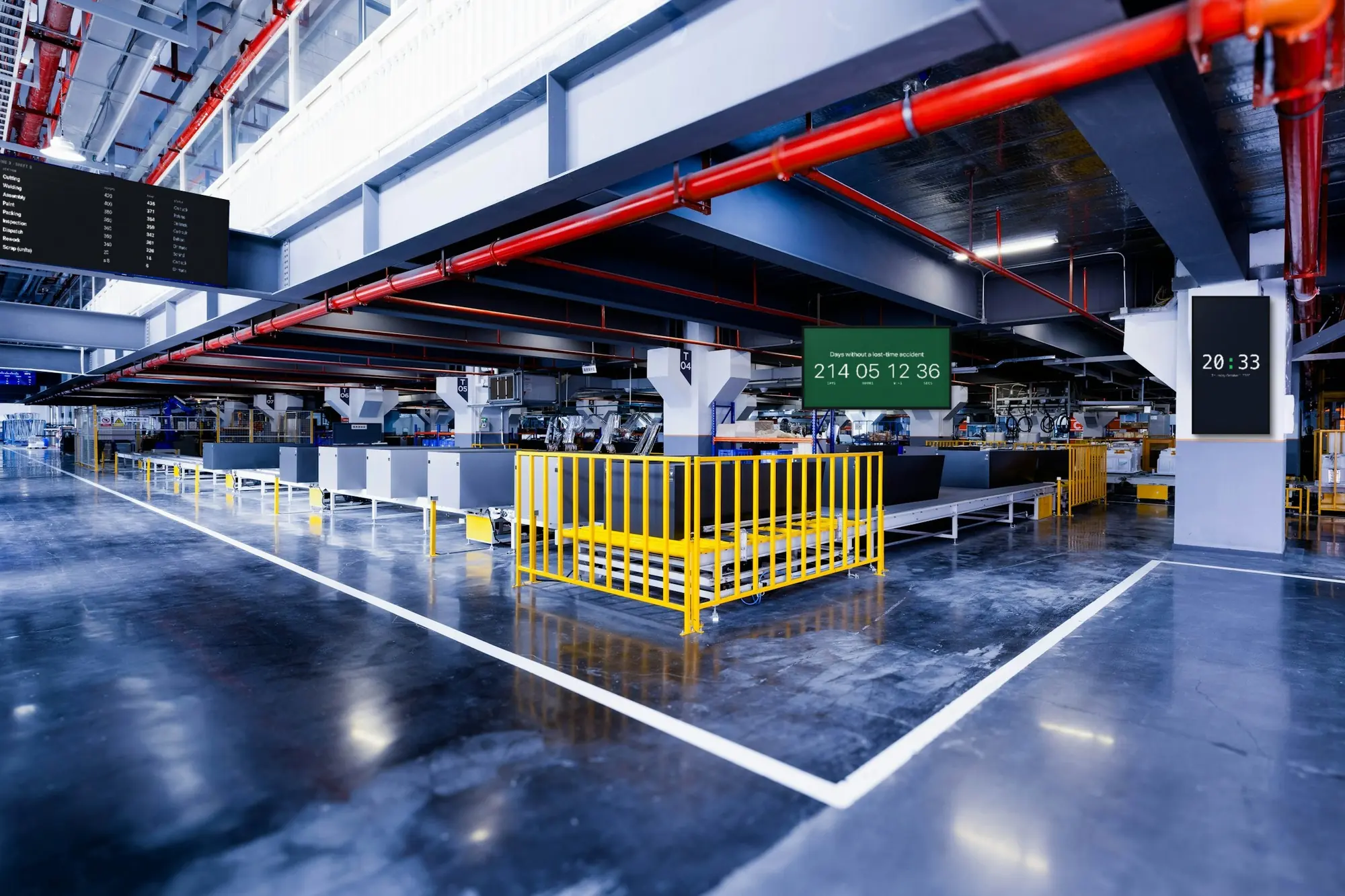
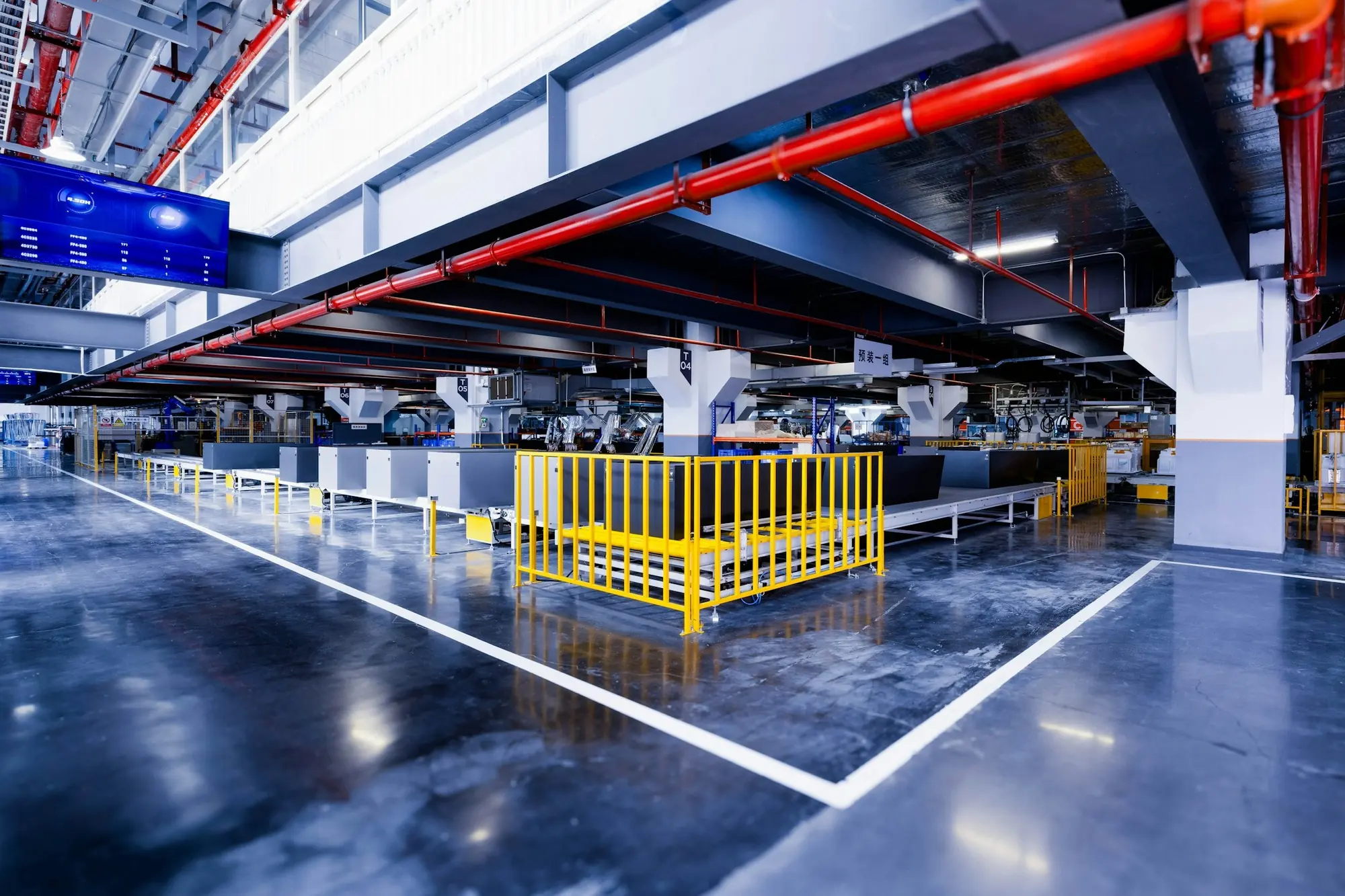 BeforeAfter
What the screens do in a factory or warehouse
Most sites start with the shift’s figures and the safety board, then add the rest. Each of these is an app in the dashboard, included in the plan.
The shift’s figures, from a Google Sheet
The Google Sheets app shows a sheet as a table on the wall — target, output, scrap, open orders, whatever the columns say. Edit the sheet and the screen follows within about a minute. Who or what fills the sheet is up to you.
Days without an accident
The Countdown app also counts up: days, hours and minutes since the date of the last incident, and it keeps ticking with the network down. After an incident, change the date and it starts again from zero.
An emergency message on every screen
Emergency Alert puts a headline, details and a severity colour — red, amber or blue — over every screen you picked, within a second of being switched on in the dashboard. Screens outside their working hours included.
Safety rules and procedures
One rule in big type with the Text app; a procedure as a Google Slides deck or a PDF whose pages turn on their own. A new version replaces the old one on every screen that shows it.
Short notices over everything
The Ticker runs your own messages along the top or bottom of the screens you choose — a visitor on site, a delayed truck, Thursday’s fire drill — over whatever else is playing.
Shifts, training and the time
Google Calendar shows the shift and training schedule as a day, week or month, read-only. The Clock shows the time in big digits, and Weather shows the loading bays what is on the way.
What changes when the figures are on the wall
Less copying out, fewer stale printouts, and a faster way to reach everyone in the building.
Nothing copied out by hand
The figures are entered once, in the sheet. Nobody rewrites the whiteboard at the end of the line at every shift change, and it never shows yesterday’s numbers.
The numbers where the shift is
Target and output hang where people work and pass, not in the office or on a laptop. Everyone on the floor reads the same figures at the same time.
One version of every notice
A procedure changes once, in the dashboard, and every screen that shows it changes with it. No old printout is left behind on a notice board in another hall.
One switch for an emergency
An alert written in advance goes onto every chosen screen within a second, even at night when the screens are dark. The person on duty switches it on from a phone.
Proof a notice was shown
Every screen logs what it played and when. The playback report — a PDF for one screen or all of them, exported or emailed on a schedule — shows which safety notice ran on which screen, and when.
Still on when the network is not
Playlists, media and working hours are stored on each screen. If the network in the hall drops, the screens carry on: the sheet holds its last figures and the count keeps ticking until the connection is back.
What you need
No server, nothing to install on your network, and no hardware from us. A hall asks more of the screen and the cable than a shop does.
Screens built for long hours
A commercial display rated for long daily hours, large enough for the distance: 55" to 65" at four to five metres, 75" and up beyond that. Dust, heat and brightness are a question for the display you buy.
Something to run the player
An Android TV box (Android 8 or newer) with an ethernet port, or an Android display that takes the app directly. A PC in the hall works too, with the SignageStack app for Windows.
A cable to the network
Wired ethernet wherever you can run it; Wi-Fi among steel racking and machines is the first thing to fail. The player needs the internet to pair and to receive changes, not to keep playing.
A SignageStack account
Free for 21 days with every feature on one screen, no card. Then €11 per screen a month or €100 a year, with every app included.
Setting it up, from box to wall
The first screen takes about as long as mounting it. The real work is deciding what the shift needs to see.
Mount the screen, run the cable
Hang the screen where the shift looks — at the hall entrance, above the walkway, at the end of the line — and connect the Android box to its HDMI input, the power and the network cable. Landscape or portrait is a setting on the screen in the dashboard.
Install the player and pair it
Install the SignageStack player on the box. The screen shows a six-character code; in the dashboard choose Add screen, type it, and give the screen a name you will find again, like “Hall 2 — line 3” or “Dock 4”.
Build the content
Connect your Google account and pick the sheet with the shift’s figures. Add a Countdown that counts up from the last incident. Write the Emergency Alert now, in calm conditions, and leave it switched off.
Playlist, working hours, publish
Put the apps in a playlist and add it to the screens. Set working hours to match the shift pattern — or Always on for a site that never stops — and publish. The wall changes within seconds.
Changing the screens day to day
Most of it happens without the dashboard: the figures arrive through the sheet. The rest is a few minutes from a phone.
- The figures: whoever keeps the sheet keeps the wall. Nobody has to open the dashboard for the numbers to change.
- After an incident: change the date in the Countdown and publish. The count starts again from zero on every screen that shows it.
- A new procedure: replace the PDF or edit the Slides deck. The old version disappears from every screen.
- Shift change: the screens do not swap playlists by the clock on their own. Keep content that suits every shift, or switch items off and on at handover.
- A visitor, a delayed truck, a drill: a line in the Ticker, deleted when it is over.
- Shift leads: invite them as Members to change content, and managers as Viewers. Each uses the dashboard in English, Serbian, German, Spanish or Italian.
Apps factories and warehouses run
All included in every plan. These are the ones a site reaches for first.
- Google SheetsPut a Google Sheet on the wall
- CountdownCount down to a moment — or up since one
- Emergency AlertFull-screen urgent message
- TickerScroll announcements across the screen
- Google SlidesLoop a private Google Slides deck from your account
- Web pageShow any website or dashboard
- Google CalendarShow upcoming events from a Google Calendar
- ClockShow the current time on your screens
Where the screens go
A factory or a warehouse has more wall than any shop, and most of it is the wrong place for a screen. Put screens where people stop or pass every shift, not where there happens to be space.
At the entrance to the hall, by the time clock, is where the day starts. This is the screen for the whole site: today's targets, the days without an accident, this week's notices. Everyone passes it twice a shift.
At the end of a line or above a work area, the screen belongs to the people working there: the figures for their line, their target and where it stands. One table, readable from the workstation, does more here than a rotation of ten things.
At the loading docks, drivers and dock staff want the time, the weather and anything about the yard that changed this morning — a Clock, the Weather app and a Ticker.
In the break room and the canteen, people sit down and have a few minutes. This is the place for the longer things: the training schedule from Google Calendar, a procedure as a Google Slides deck, the week's canteen menu on the Menu board.
How big, and how high
Distances in a hall are longer than they look. The rule of thumb in the hardware guide: the furthest reader should be no more than six screen heights away for large text, four for a table read line by line. For a screen read from four or five metres that means 55" to 65"; for one read across the hall, 75" and up.
Mount screens high enough to clear forklifts, pallets and racking, and tilt them toward where people stand. A screen above the walkway is read on the move, so give it less to say than the one by the time clock.
A table of figures wants landscape; a notice or a count works either way. Decide on the day you mount the screen, and set the orientation on the screen in the dashboard.
Putting the shift's figures on the wall
SignageStack does not talk to your machines, your MES or your ERP. The figures come from a Google Sheet, and the Google Sheets app shows that sheet as a table that follows it within about a minute. Who or what fills the sheet is up to you: a shift lead typing in the hourly count, an export from your own system, a formula that pulls from the planners' spreadsheet.
A few things make a sheet work on a wall:
- A sheet made for the screen. The app shows the first tab, with row 1 as the headings. Give the wall its own short sheet rather than pointing it at the spreadsheet the planners work in.
- Few columns, big numbers. Line, target, actual, difference. A handful of columns reads from across the hall; a whole planning sheet does not.
- Fewer rows. A long table turns its pages on its own, but every extra page is one more to wait for. Show the rows that matter on this shift.
If the figures already live in a dashboard tool with a public share link, the Web page app can show that page instead — as long as the tool allows itself to be embedded.
Safety content that gets read
Days without an accident. The Countdown app also counts up: give it a title and the date and time of the last incident, and it shows the days, hours and minutes since — on its own, even offline. When there is an incident, someone has to change the date — decide who before the screen goes up.
One rule at a time. A procedure that runs to four pages belongs in the break room, as a PDF whose pages turn on their own or as a Google Slides deck. On the floor, use the Text app for one instruction at a time, in type large enough to read from the aisle.
Short notices in the Ticker. A visitor on site, a blocked aisle, a drill on Thursday: a line in the Ticker runs along the edge of every screen you choose, over whatever else is playing. Take it out when it is over, so people keep reading it.
The alert, written in advance. Emergency Alert takes over every screen you choose within a second of being switched on, including screens that are dark outside their working hours. A person switches it on in the dashboard; it is not connected to your alarms or sensors. Write the evacuation message now, pick the screens, leave it off, and make switching it on part of the drill.
Shifts, hours and more than one site
Set each screen's working hours to the shift pattern: Always on for a site that runs around the clock, a start and an end for each weekday for one that does not. Outside those hours the screen goes dark and comes back for the next shift, on its own clock.
The screens do not change playlists by time of day. Most sites do not need them to: the figures change through the sheet, and the rest suits every shift.
Give shift leads their own login as Members, so they can change content, and managers a Viewer login to look without touching anything. The dashboard speaks English, Serbian, German, Spanish and Italian; what is on the screen is in whatever language you write it, and the Zones app can put two languages side by side.
Every plant and warehouse sits in the same dashboard. The screens list shows when each player was last seen and what it is playing, so a dark screen in another building shows up without anyone walking over. And the playback report — a PDF for one screen or all of them, which can be emailed on a schedule — shows which safety notice ran on which screen, and when.
Mistakes that are easy to avoid
- Wi-Fi in a steel hall. Racking, machines and moving forklifts make it unreliable. Run a cable.
- A consumer TV in a warm, dusty hall. It is built for a few hours a day in a living room, not for three shifts.
- A screen that does not come back after a power cut. Check for automatic power-on before you buy, and prefer a box that starts as soon as it gets power.
- A counter nobody resets. If one number on the wall is wrong, people stop believing the rest.
Questions factories and warehouses ask
No. SignageStack does not connect to machines, PLCs, MES, SCADA or ERP. Figures reach the screen through a Google Sheet, shown as a live table that follows the sheet within about a minute — who or what fills the sheet is up to you. A dashboard with a public share link can go in the Web page app, if the tool allows it to be embedded.
No. A person switches it on in the dashboard; it is not wired to alarms or sensors. Once on, it covers every screen you picked within a second, including screens outside their working hours. It adds to your alarm system; it does not replace it.
That depends on the display you buy, not on the software — and we do not sell hardware. Ruggedness, dust and water protection and brightness are on the display’s spec sheet; the hardware guide covers sizes, panels built for long hours and the rest.
Only if you tell them to. Set working hours to Always on for a site that never stops. On a two-shift site, set a start and an end for each weekday: the screens go dark after the last shift and come back for the first, on their own clock, even offline.
The screens keep playing. Playlists, media and working hours are stored on each one; the sheet shows its last figures and the Countdown keeps ticking. Changes arrive when the connection is back.
Yes. Every screen at every site is in one dashboard, and one playlist can play on screens at all of them. It costs €11 per screen a month or €100 a year; for large fleets, Enterprise adds volume pricing, a signed DPA and an uptime SLA.
Read next
- Digital Signage Hardware — What to BuyWe do not sell hardware. What the player runs on, how big a screen needs to be, what to look for in a media player, and what is not worth paying for.
- Digital Signage Features — Apps & PlaylistsScreens, playlists, working hours, 32 built-in apps, split-screen zones, proof-of-play reports, offline playback and team roles — all in one plan.
- Digital Signage Pricing — €11 per ScreenOne plan with every feature: €11 per screen a month or €100 a year. No setup fee, no per-user seats, no minimum. Free for 21 days, no card to start.
Three steps between a blank TV and a live one.
No server to run, no licence per seat, nothing to install on your network. A display, a power socket and an internet connection.