Digital signage for churches.
A welcome at the door, a countdown to the service and this week’s events on the screens in the foyer — kept current by volunteers from their phones, and dark when the building is empty.
The same church, before and after
A screen went up on either side of the windows: a welcome with a countdown to the Sunday service, and the week’s events from a Google Calendar beside this Sunday’s lunch. Drag the line to see both.
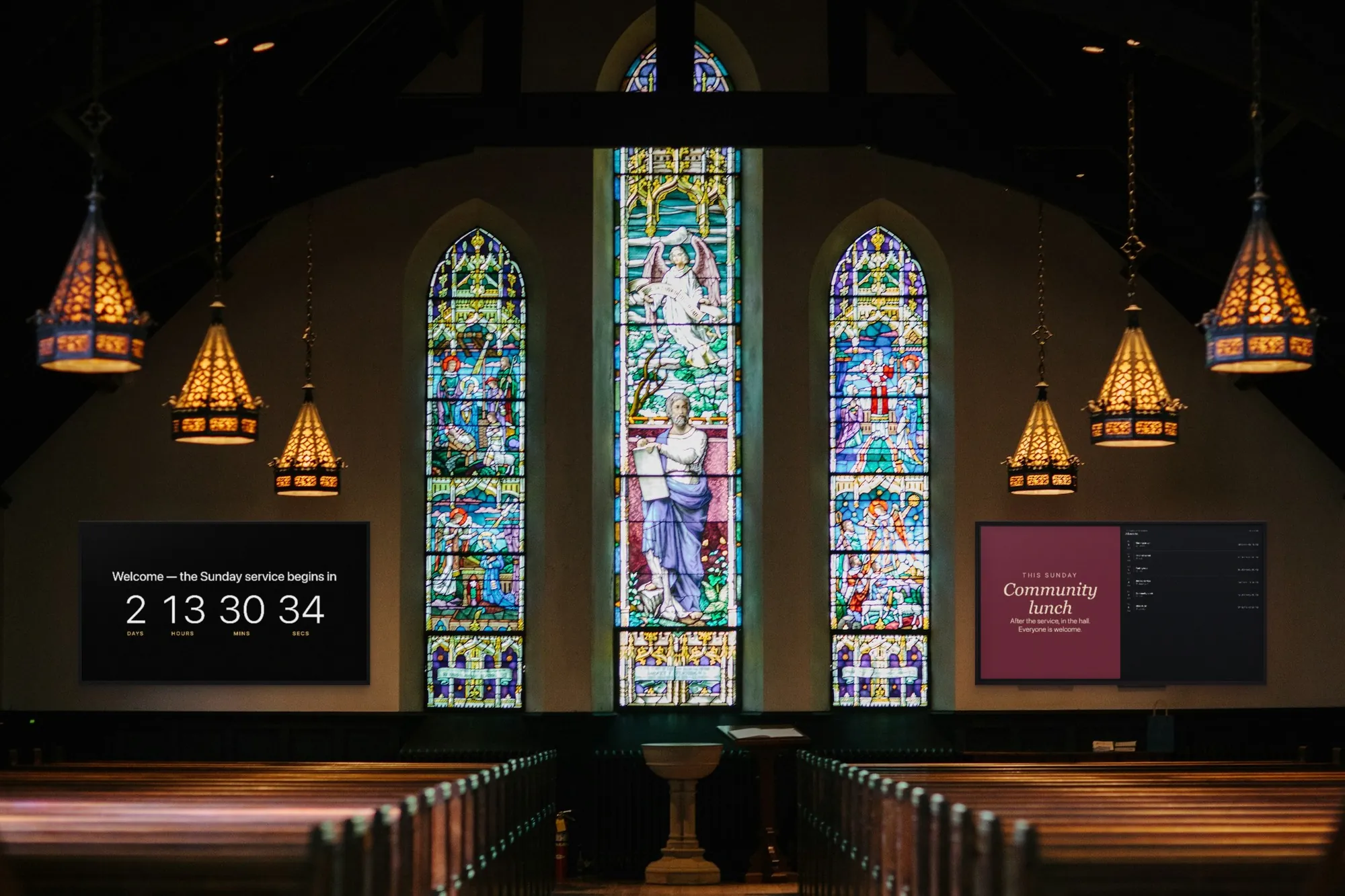
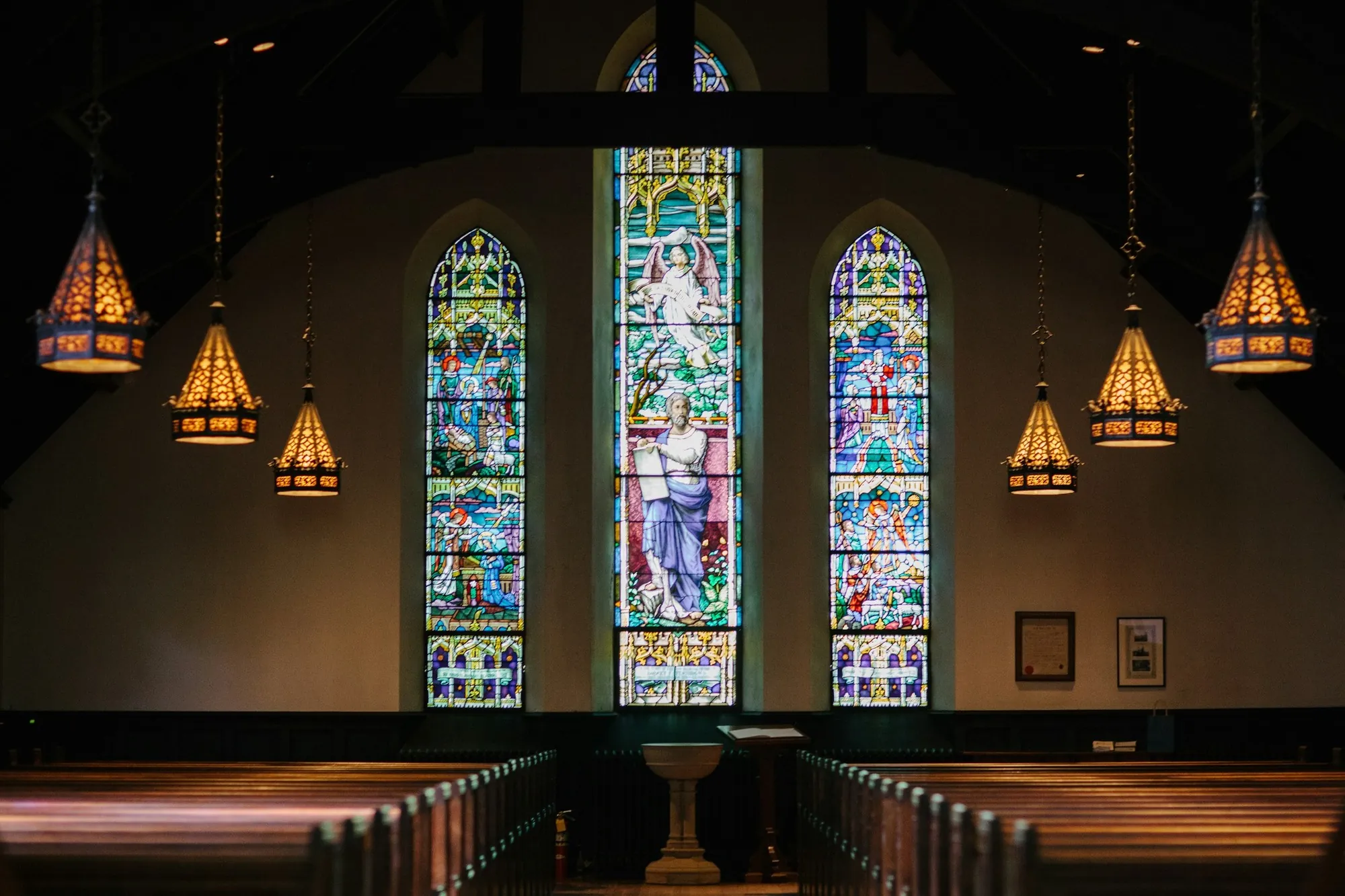 BeforeAfter
What the screens do in a church
One screen in the foyer is where most churches begin. Every card below is an app in the dashboard, and all of them are in every plan.
A welcome at the door
The Text app puts a welcome and this week’s service times on the screen people see as they come in, in your own colours. Someone visiting for the first time can see where the children go and where the coffee is without having to ask.
A countdown to the service
The Countdown app counts down to the start of the service, so everyone in the foyer knows when it is time to go in. At zero it shows your own message — “We have started, come on in” — and it keeps ticking with the internet down.
This week’s events from your calendar
The Google Calendar app shows the church calendar as a day, week, month or schedule view. Add a youth evening or a choir rehearsal to the calendar and it appears on the screen; past events drop off. It only reads the calendar and never changes it.
Notices your team already designs
Connect Canva and show the designs volunteers already make for social media and the bulletin. Multi-page designs play as a slideshow, and an edit in Canva reaches the screen on its own. Google Slides decks work the same way.
Giving, sign-up and Wi-Fi by QR code
The QR code app makes a code that opens your giving page, a sign-up form or your website, or joins the guest Wi-Fi. People scan it from where they stand; the gift is made on your own giving page, not in SignageStack.
The service in the overflow room
When the main room is full, the Live stream app shows your own YouTube, Facebook or other stream on a screen in the overflow room or the foyer, with the sound on or off.
What changes when the notices are on a screen
The difference is in who can change them, and how quickly.
Notices where people wait
Before the service and over coffee afterwards, people stand in the foyer. A screen there carries the week’s notices for the whole morning, not just for the minute they are read out from the front.
Nothing to print, pin or take down
No more flyer for an event that ended in March. When an event is over, switch its slide off; when a date moves, change it once and every screen shows the new one.
A login for every volunteer
Invite the welcome team, the youth leader and the comms volunteer with logins of their own. Members change content, Viewers look without changing anything, and nobody shares a password.
On for services, dark the rest of the week
Working hours switch each screen on around your services and meetings and leave it dark when the building is empty — on the screen’s own clock, even with the internet down.
Every site, the same notices
One playlist can play on every screen in every building. A second site, or the church hall across the road, shows the same notices, edited in one place.
Still playing when the Wi-Fi is not
Old buildings and thick walls are hard on Wi-Fi. The screen stores its playlist and keeps playing when the connection drops, and the dashboard shows when each screen was last seen — so you can check it from home the evening before.
What you need
No installer, no server, and nothing to buy from us — we do not sell hardware. Some of it may already be in a cupboard at church.
A screen
Any TV or commercial display with an HDMI input; 43" to 55" suits a foyer read from three or four metres. A screen that is on only around services does not need a commercial panel built for long hours, so a donated TV is a fine start. In the overflow room, a projector with an HDMI input works too.
Something to run the player
An Android TV box or stick behind the screen (Android 8 or newer), or a TV running Android TV or Google TV, which takes the app directly. A Windows PC runs the SignageStack app for Windows; a Mac runs the web player in a browser.
An internet connection
Cable or Wi-Fi, to pair the screen and to receive changes; everything else plays from storage. For the overflow room, run a cable if you can: a live stream needs the connection the whole time it plays.
A SignageStack account
Free for 21 days with every feature on one screen, no card. Then €11 per screen a month, or €100 a year.
Setting it up, from box to foyer
Hanging the screen is most of the work. Pairing it is a code typed into the dashboard.
Hang the screen, plug in the box
Mount the screen where people gather as they come in, high enough to read over the heads in front, and plug the Android box into its HDMI input and the power. Landscape suits most foyers, portrait a narrow wall by the door; the orientation is a setting on the screen in the dashboard.
Install the player and pair it
Install the SignageStack player on the box. The screen shows a six-character code; in the dashboard choose Add screen, type it, and give the screen a name everyone will recognise, like “Foyer — main doors”.
Make the first slides
A Text slide with the welcome and the service times, a Countdown to the next service, the Google Calendar app with your church calendar, and a QR code to your giving page. Connect Canva if your notices are already designed there.
Put them in a playlist and publish
Add the slides to a playlist, add the playlist to the screen and set its working hours — Sunday morning and Wednesday evening, say. Publish, and it is on the wall within seconds.
From one week to the next
One person looks after the playlist; whoever runs a group or a team changes their own slides, with a login of their own.
- Monday: switch last week’s notices off in the playlist and this week’s on. Nothing is deleted, so a notice that comes back next month is one switch away.
- After the service, move the Countdown to the next one. It counts to one date and time, and does not roll over to next week on its own.
- New events go into the church’s Google Calendar as usual and appear on the screen; with only upcoming events shown, past ones drop off by themselves.
- The comms volunteer edits the design in Canva; the screen picks up the new version on its own.
- Working hours are one span per day: a screen can come on for Sunday morning and Wednesday evening, and on a day with a morning and an evening service, one span covers both.
- A second site or a new room: pair the screen and give it the same playlist. Nothing to copy.
Apps churches run
All included in every plan. These are the ones that fit a church’s week.
- TextShow a message or announcement
- CountdownCount down to a moment — or up since one
- Google CalendarShow upcoming events from a Google Calendar
- CanvaShow a Canva design on your screens
- QR codeShow a scannable QR code
- Live streamPlay a live video stream on your screens
- Google SlidesLoop a private Google Slides deck from your account
- ZonesSplit one screen into several panels
Where the screens go
Most churches have three places where a screen does a job no printed notice can. Start with the first and add the others once it works.
The foyer, by the main doors. Everyone passes it twice, on the way in and on the way out. This is the screen for the welcome, the service times, the countdown and what is coming up this week. It is also where a newcomer looks for directions, so give them: where the children’s groups meet, where the coffee is, who to ask.
The hall or the café area. After the service people stand here with a cup in their hand and a few minutes to spare. This is for the notices that need more than a glance — the youth weekend, the volunteer rota, the collection for the food bank — each with a QR code to sign up or give.
The overflow room. When the main room is full, a screen here carries the service through the Live stream app. Give it a playlist of its own, so the stream is all it shows.
Size, height and orientation
Measure from where people actually read the screen, not from the middle of the room. For large text, like a welcome or a countdown, the furthest reader can be about six screen heights away; for a list of events read line by line, about four. In a foyer read from three or four metres that means 43" to 55"; in an entrance hall read from four or five metres, 55" to 65". The hardware guide has the full table.
Hang it higher than you would at home. Before a service the foyer is full, and a screen at eye level is one that nobody behind the first row can see. A QR code is the exception: it has to be scanned, so put it on a screen people can walk up to, and make the code large.
Landscape suits most foyers and every live stream; portrait suits a narrow wall beside a door. Decide before you mount it — the mount and the cable follow from it — then set the orientation for that screen in the dashboard.
What goes on the foyer screen
A short playlist works better than a long one. People see the foyer screen for a minute or two at a time, and in a loop of twenty slides the one that matters may not come round while they are there. Something like this is enough:
- A welcome with the service times, from the Text app.
- A Countdown to the start of the next service, with a message for when it reaches zero.
- This week’s events, from the Google Calendar app in schedule view, showing upcoming events only.
- Two or three notices, designed in Canva.
- A QR code for the giving page or the sign-up form.
Events kept somewhere other than Google Calendar? The Web page app can show the events page of your own website instead.
To show several things at once, the Zones app splits one screen into panels: the countdown beside the calendar, say, with the notices in a third.
Keep one more thing ready that you hope never to need. The Emergency Alert app puts a full-screen message on the screens you choose within a second, including screens outside their working hours, for the day the building has to be cleared.
Writing notices for a screen
A notice in the bulletin is read sitting down. A notice on a screen is read in passing, in the few seconds before someone says hello. Write it that way.
- One event per slide. What, when, where, and one thing to do about it.
- Fewer words than the bulletin. If it needs a paragraph, it belongs on your website; put a QR code to that page on the slide.
- Details people can act on. “Saturday, 10:00, in the hall” beats “soon”.
- The same look every week. A Canva template the comms team reuses makes notices quicker to make and quicker to read.
- Time to read it. Each item in a playlist has its own duration. Give a notice long enough to be read twice.
- Not the bulletin as a PDF. The PDF Reader turns pages on its own every five, seven or ten seconds, and a page made for print is too dense to read on a wall. Put the bulletin behind a QR code instead.
Who keeps it right
Screens in a church go stale for the same reason noticeboards do: everyone can add to them and nobody owns them. Give one person the playlist. Give everyone who runs a group a login of their own — as a Member to change content, or as a Viewer to look without changing anything — so that the youth leader updates the youth slide and nobody needs the comms volunteer’s password.
Then make three habits:
- Monday: last week’s notices off, this week’s on.
- After the service: the Countdown moved to the next one. It does not roll over by itself.
- The evening before: a look at the screens list in the dashboard. Every screen reports when it was last seen and what it is playing, so one that went dark during the week shows up there, not in front of the congregation.
Working hours do the rest. Each screen comes on before the service and goes dark after it, on its own clock, even if the internet is down. A church on more than one site can run the same playlist on all of them.
What goes wrong, and how to avoid it
- A screen on all week in an empty building. Set the working hours on the day you install it.
- Last month’s events still on the wall. Show upcoming events only in the calendar, and switch notices off when they end.
- A QR code nobody can reach. Above the heads of the crowd, it is decoration.
- The overflow room on weak Wi-Fi. A live stream needs the connection the whole time; a cable is worth running.
- The stream’s sound in the foyer. If the foyer screen shows the service too, switch its sound off: the foyer is next door to the room the sound comes from.
- Asking the foyer screen to do the main room’s job. SignageStack is not worship presentation software. Lyrics and sermon slides stay with the software and the people at the desk.
Questions churches ask
No. SignageStack is not worship presentation software: there are no live lyrics, and nobody advances the slides from the desk in time with a song. Google Slides and Canva decks play on their own timing. Keep the software you use in the main room for that, and use SignageStack for the foyer, the hall and the overflow room.
Yes, if you already stream it. Paste the link of your YouTube, Facebook or other stream into the Live stream app and put it on the overflow room’s screen, with the sound on. SignageStack does not record or produce the stream — it shows the one you already broadcast, with the same delay as for people watching at home — and it needs the internet the whole time.
Not on the screen itself. A QR code opens your church’s own giving page on the phone of whoever scans it, and the gift is made there. SignageStack takes no payments and never sees them.
No. The Countdown counts to one date and time, then shows your message at zero. After the service, set the next one — a quick edit from a phone.
Yes. Nothing in it is specific to a church: a welcome, a calendar, notices, QR codes and a live stream work in any house of worship. One thing to know: it does not calculate prayer times. A timetable kept in a Google Sheet shows on the screen as a table and updates when the sheet changes.
€11 per screen a month, so €33, or €100 per screen a year — €300. Every app is included, and the 21-day trial runs on one screen with no card.
Read next
- How Digital Signage Works — in 3 StepsPair a display with a six-character code, build a playlist, set its hours. What you need, what happens when you publish, and what a screen does offline.
- Digital Signage Hardware — What to BuyWe do not sell hardware. What the player runs on, how big a screen needs to be, what to look for in a media player, and what is not worth paying for.
- Digital Signage Pricing — €11 per ScreenOne plan with every feature: €11 per screen a month or €100 a year. No setup fee, no per-user seats, no minimum. Free for 21 days, no card to start.
- Digital Signage Content Ideas: 60 Things to Show, and How to Make Them60 digital signage content ideas grouped by goal, from opening hours to QR codes, each with how to make it: an app, an image or a short video.
Three steps between a blank TV and a live one.
No server to run, no licence per seat, nothing to install on your network. A display, a power socket and an internet connection.