Digital signage for offices, lobbies and meeting rooms.
This week’s figures from a Google Sheet, today’s meetings from Google Calendar and the notices everyone should see — on the screens in the lobby, the corridors and the break room, kept current without anyone walking over to change them.
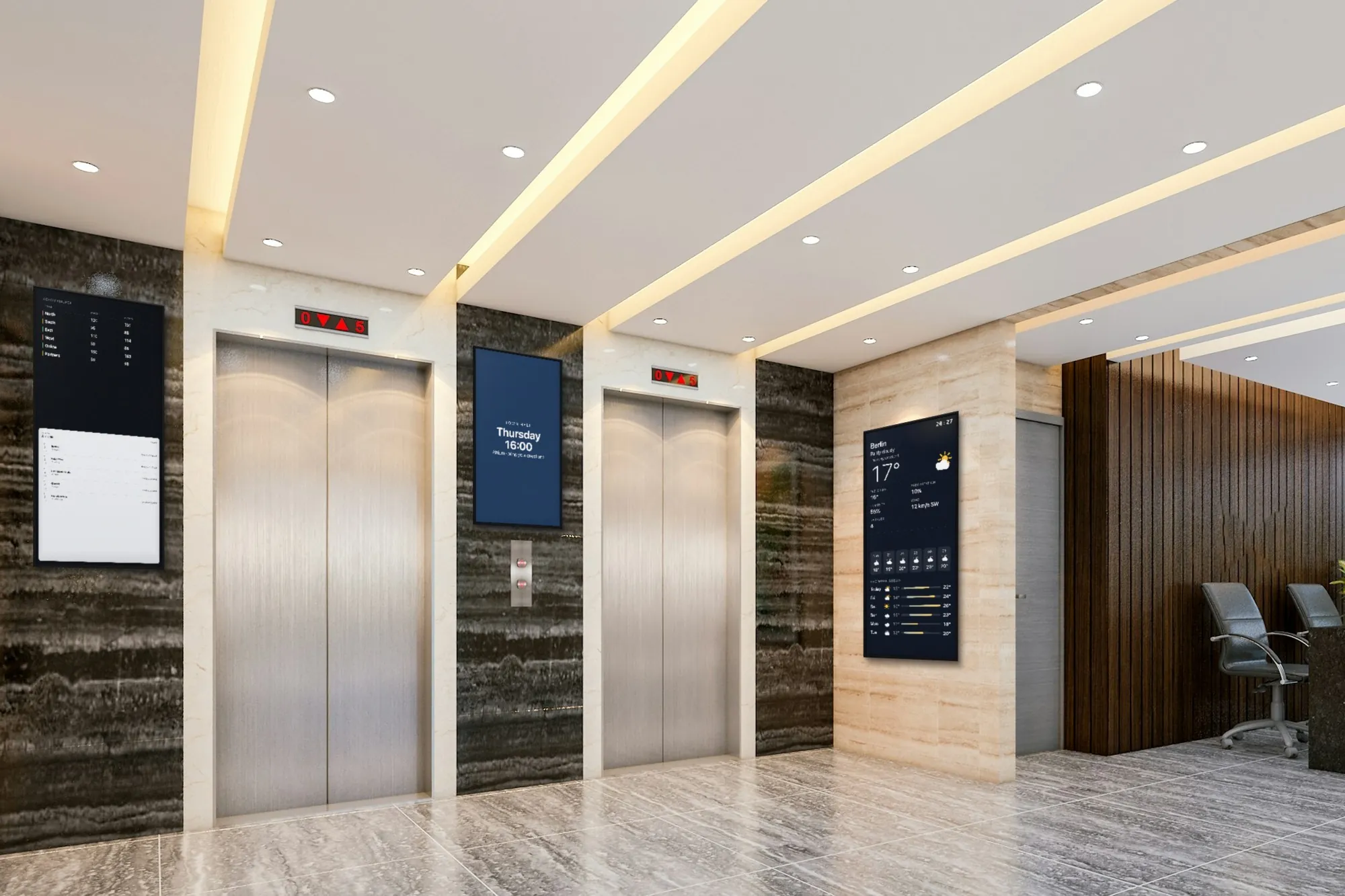
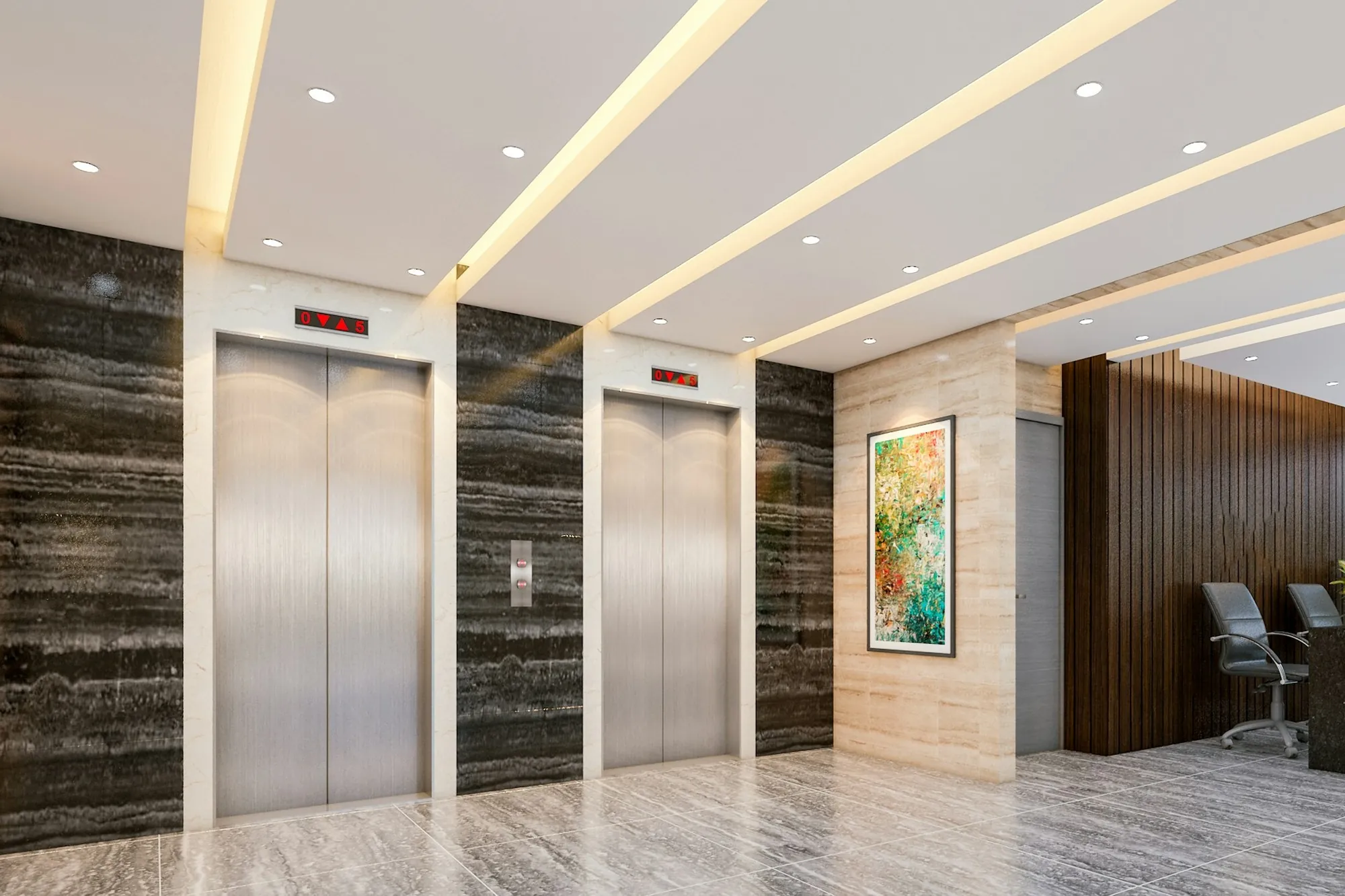
The same lobby, before and after
Three portrait screens in the lift lobby: the week’s figures from a Google Sheet above tomorrow’s meetings from a Google Calendar, a town-hall notice between the lifts, and the weather where the painting was. Drag the line to see both.
 BeforeAfter
What the screens do in an office
Most offices start with one screen in the lobby or the break room and add the rest from there. Each of these is an app in the dashboard, included in the plan.
The figures the team already keeps
The Google Sheets app shows a sheet as a live table: sales this week, open tickets, orders shipped. Someone updates the sheet as they always do, and the screen follows on its own.
Today’s meetings, by the room and in the lobby
The Google Calendar app shows a calendar as a day, week, month or schedule view. Beside a meeting-room door it shows who has the room and until when; in the lobby, what is on today.
Notices and announcements
A Text slide for the notice of the week, and the Ticker for short lines running along the top or bottom of the screen, over everything else — the lift out of order, the canteen closing early.
An evacuation message on every screen
The Emergency Alert app covers the chosen screens with a full-screen headline in red, amber or blue within a second of being switched on in the dashboard — including screens that are dark outside their working hours.
Decks HR and comms already keep
A Google Slides deck plays as a slideshow and updates when someone edits the deck. A Canva design does the same: when it changes in Canva, the screen shows the new version.
The break room
Weather, a clock, the next public holidays and headlines from BBC News, The Guardian or DW. Zones puts several on one screen — the forecast beside the schedule, the news underneath.
What changes when notices are on a screen
Less paper on the noticeboard, fewer emails nobody opens, and one place to change things.
One edit, every floor
A notice changed in the dashboard reaches every screen showing it within seconds. Nothing to print, pin up, or take down again floor by floor.
Figures nobody copies by hand
The sheet is the source. Nobody pastes a screenshot of last week’s numbers into a slide every Monday; the table on the wall is the sheet as it is now.
Rooms that answer for themselves
The schedule by the door says who has the room and when it frees up, so nobody opens the door on a meeting to find out.
Alerts that do not wait their turn
An Emergency Alert does not queue behind the playlist. It takes over the chosen screens at once, and once it is on a screen it stays up even if the connection drops.
A record of what was shown
Every screen logs what it played and when. When someone asks whether the safety notice was on the screens last month, the playback report — a PDF you export, or have emailed on a schedule — answers.
Dark at night and at weekends
Each screen has working hours, set per weekday. It goes dark when the office empties and comes back in the morning on its own clock, even with the network down.
What you need
No installer, no server and nothing to set up on your network — and we sell none of the hardware. Use what you have, or what IT already buys.
Screens
Any TV or commercial display with an HDMI input. In the lobby, where a screen runs all day, a commercial display built for long hours is worth it; in the break room a consumer TV is fine. Beside a meeting-room door, a tablet or a small Android display is enough.
Something to run the player
An Android TV box or stick behind the screen (Android 8 or newer), or a TV with Android TV or Google TV, which takes the app directly. A Windows PC runs the SignageStack app for Windows; a Mac runs the web player in a browser.
A network connection
Wired ethernet where there is a port, or Wi-Fi. The screens need the internet to pair and to receive changes; ask IT which network they should join. Playback carries on without it.
A SignageStack account
Free for 21 days with every feature on one screen, no card. Then €11 per screen a month, or €100 a year. For a larger rollout, Enterprise adds volume pricing, a signed DPA and an uptime SLA.
Setting it up, from wall to screen
The first screen takes about as long as mounting it. The rest is deciding what goes on it.
Mount the screen, plug in the player
Hang the screen where people pass or wait — the lobby, the corridor to the kitchen, beside a meeting-room door — and plug the Android box into its HDMI input and the power. Landscape for a table of figures, portrait for a long schedule: the orientation is a setting on the screen in the dashboard.
Install the player and pair it
Install the SignageStack player on the box. The screen shows a six-character code; in the dashboard choose Add screen, type it, and give the screen a name you will recognise, like “Lobby — reception” or “Room 3.12 — door”.
Connect Google and build the content
Connect your Google account once — the Google Calendar app only reads, it never books or changes anything — then pick the spreadsheet with the figures and the calendar for each room. Add a Text slide for this week’s notice.
Put it in a playlist and publish
Put the apps in a playlist, add it to the screen, set the working hours — weekdays, office hours — and publish. It is on the wall within seconds.
Changing the screens day to day
Whoever owns the content does it, from a laptop or a phone, with a login of their own.
- New figures: update the spreadsheet as usual. The table on the wall follows on its own; nobody opens the dashboard.
- A notice for this week only: add a Text slide and switch it off in the playlist on Friday. The screen does not swap content by the clock on its own.
- A visitor arriving: a welcome slide on the lobby screen for the morning, switched off once they have gone.
- A fire drill or a real incident: switch on the Emergency Alert you prepared. Switch it off when it is over, and the playlists carry on.
- Evenings and weekends: each screen goes dark at the end of the working day and comes back in the morning — even with the network down.
- People: HR, facilities and the comms team as Members to change content; managers as Viewers to look without touching. Roles apply to the whole account, not to single screens.
Apps offices run
All included in every plan. These are the ones an office reaches for first.
- Google SheetsPut a Google Sheet on the wall
- Google CalendarShow upcoming events from a Google Calendar
- Emergency AlertFull-screen urgent message
- TextShow a message or announcement
- TickerScroll announcements across the screen
- Google SlidesLoop a private Google Slides deck from your account
- ZonesSplit one screen into several panels
- WeatherLive local weather on your screens
Where the screens go
An office has four places where a screen gets read, and people give each one a different amount of time.
The lobby and reception is where visitors wait and staff walk through twice a day. Visitors read it while they wait; staff glance at it on the way past. This is the screen for today's schedule, a welcome for the people you are expecting, the weather, and the guest Wi-Fi as a QR code. It is also the one screen in the building that strangers read, and that decides what may go on it — more on that below.
The corridor to the kitchen and the break room is where people stop for a few minutes with a coffee and actually read, which makes it the place for a digital bulletin board: the notice of the week, the HR deck about the new leave policy, the next public holiday, the headlines.
The team area is where a screen with the team's own figures works — sales this week, open tickets, orders shipped — read many times a day by the people who move those numbers.
Beside a meeting-room door, a small screen shows that room's bookings for the day. People read it from a step away, in a second, and move on.
How big, and which way up
Measure from where people stand when they read, not from the middle of the room. For large text, such as a headline or a clock, the furthest reader can be about six screen heights away; for a table read line by line, about four. A reception area read from three or four metres wants a 43" to 55" screen; a lobby or corridor read from four or five metres, 55" to 65". Beside a meeting-room door, a tablet or a small Android display is enough. The hardware guide has the full table.
Orientation follows the content. A table of figures with several columns wants landscape. A list of the day's meetings reads better in portrait, where more of the day fits without scrolling. Decide on the day you mount the screen — the mount and the cable run follow from it. In SignageStack the orientation is a setting on each screen in the dashboard.
What goes on each screen
One playlist per place keeps each screen doing one job well.
- Lobby: the Google Calendar app in schedule view, with “Only show upcoming events” switched on so finished meetings drop off. Zones can put it beside the weather and a clock — one clock: the Clock app shows the local time, not the time in your other offices. A Text slide welcomes the visitors you expect that day, and a QR code joins the guest Wi-Fi.
- Break room: a Google Slides deck that HR or comms already keeps, a Text slide or two, the Public holidays app and a news app such as BBC News, The Guardian or DW.
- Team area: the Google Sheets app, showing a spreadsheet made for the screen. A Countdown to the end of the quarter or to the office move sits well beside it.
- Meeting-room door: the Google Calendar app in day view, showing that room's calendar and nothing else.
The Ticker runs over all of them when you need it: one line along the bottom of every screen you choose, for the day the lift is out of order.
Writing for people walking past
Most people give an office screen a few seconds. Write for that.
- One message per slide. “Kitchen closed Thursday for cleaning” works. A paragraph about why does not.
- A small spreadsheet for the screen. A sheet with forty columns is unreadable on a wall. Make a separate spreadsheet with only what the screen should show — a handful of rows and columns, totals rather than detail — and leave the full one where it is.
- Meeting titles that make sense on a wall. The calendar shows events as they are titled. “Quarterly review — Sales” is useful in the lobby; “Catch-up” is not.
- Enough time per item. A notice someone reads to the end needs longer than a photo. Each item in a playlist has its own duration.
- Dates, not “next week”. A notice that stays up longer than planned should still be right.
Keep private things off public screens
The lobby screen is read by everyone who walks in: visitors, couriers, candidates for interview. Before anything goes on it, ask whether you would hand it to a stranger at the door.
- Calendars show event titles as they are. A meeting called “Restructuring — Finance” is on the wall for every visitor. Use a calendar kept for the lobby, or keep sensitive meetings out of the one on screen.
- Spreadsheets show what is in them. Revenue by client belongs on the screen in the team area, not in reception.
- Dashboards from other tools show through the Web page app only if they have a public link that can be embedded — and a public link is public. Many internal tools need a login or refuse to be embedded; try the link before you plan around it.
Keeping it right
Give each screen an owner: facilities for the lobby, HR or comms for the break room, the team lead for the team area. Everyone gets a login of their own. A Member can change content and a Viewer can look without touching anything; roles apply to the whole account, not to single screens, so agree who looks after which playlist.
Prepare the Emergency Alert before you need it. Write the headline — “Evacuate the building” — the details and the severity, choose the screens and leave it switched off. In an incident, switching it on is one switch in the dashboard, and within a second it covers those screens, including the ones that are dark outside working hours. It is not wired to your fire alarm: a person switches it on, so make sure more than one person knows how, and try it at the next fire drill.
Look at the screens list in the dashboard now and then. Every player reports when it was last seen and what it is playing, so a screen that went dark shows up there before anyone complains. And when a notice has to be on screen for a set period — a safety notice, a policy change — the playback report shows which screens played it and when.
Questions offices ask
No. The Google Calendar app is read-only: it shows the room’s bookings and never adds, changes or deletes anything, and there is no touch panel to book from. Rooms are booked in Google Calendar as before; a new booking shows up on the screen on its own.
No. Calendars come from Google Calendar only; there is no Outlook calendar app and no PowerPoint app. A presentation exported as a PDF plays in the PDF Reader app, page by page — upload it again when it changes. If your rooms are booked in Microsoft 365, the room screens are the part SignageStack cannot do for you.
No — there is no connection to Slack, Teams or other chat tools. An announcement is typed in the dashboard as a Text slide or a line in the Ticker, and reaches every screen showing it within seconds.
Only if the tool gives the dashboard a public link that can be embedded — then the Web page app shows it. Many internal tools need a login or refuse to be embedded, and then nothing shows. Try the link in the Web page app before you plan around it, and remember that a public link is public. For a handful of figures, Google Sheets is often the simpler route: it shows as a live table that follows the sheet.
Write it in the Emergency Alert app in advance — headline, details, red, amber or blue — choose the screens and leave it switched off. When it is needed, someone switches it on in the dashboard: within a second it covers those screens, including the ones that are dark outside working hours, and once it is on a screen it stays up even if the connection drops. It is not connected to your fire alarm; a person switches it on.
Nothing on your network and no server — the dashboard runs in a browser. Each screen needs a player: the Android app on a TV box, an Android TV or Google TV, the SignageStack app on a Windows PC, or the web player in a browser on a Mac. For a larger rollout, Enterprise adds volume pricing, a signed DPA and an uptime SLA.
Read next
- Digital Signage Features — Apps & PlaylistsScreens, playlists, working hours, 32 built-in apps, split-screen zones, proof-of-play reports, offline playback and team roles — all in one plan.
- Digital Signage Hardware — What to BuyWe do not sell hardware. What the player runs on, how big a screen needs to be, what to look for in a media player, and what is not worth paying for.
- Digital Signage Pricing — €11 per ScreenOne plan with every feature: €11 per screen a month or €100 a year. No setup fee, no per-user seats, no minimum. Free for 21 days, no card to start.
Three steps between a blank TV and a live one.
No server to run, no licence per seat, nothing to install on your network. A display, a power socket and an internet connection.